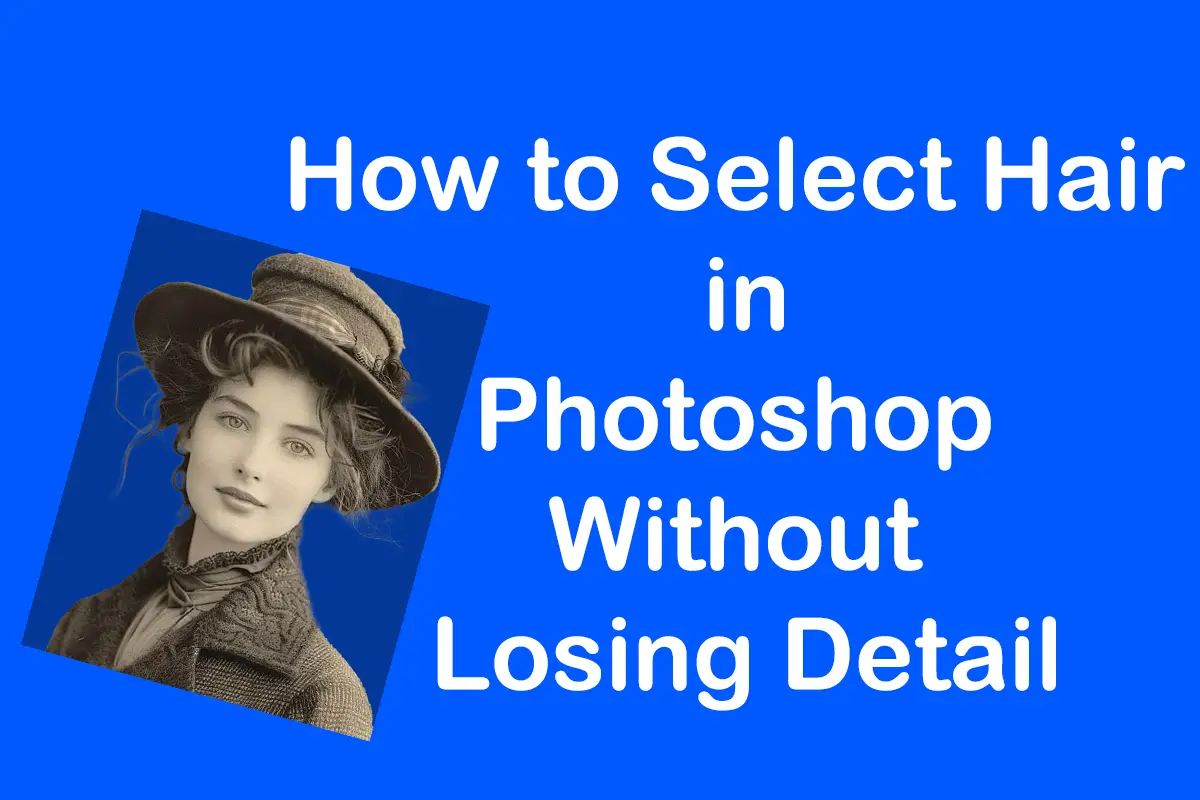
Selecting hair is one of the most challenging tasks for Photoshop beginners. Unlike solid objects with clean edges, hair contains hundreds of soft strands, transparent areas, and uneven details that are difficult to isolate correctly.
Many beginners make the mistake of trying to create perfect hair selections with a single tool. In reality, professional results usually come from combining several selection techniques together.
If you are still learning how Photoshop selection tools work, start with the tutorials available in the Basic Photoshop Tutorials for Beginners category and explore the Photoshop Selection Tools hub for a complete overview of selection workflows.
Why Hair Selections Are Difficult
Hair is difficult to select because:
- edges are soft instead of sharp
- individual strands are semi-transparent
- backgrounds often blend into the hair
- lighting affects edge visibility
This means Photoshop cannot always separate hair perfectly with automatic tools alone.
The goal is not creating mathematically perfect edges. The goal is creating selections that look natural in real editing situations.
Best Tools for Selecting Hair in Photoshop
Different images require different selection tools.
Most useful tools:
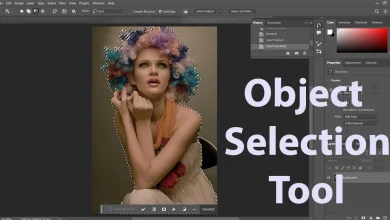
- Object Selection Tool
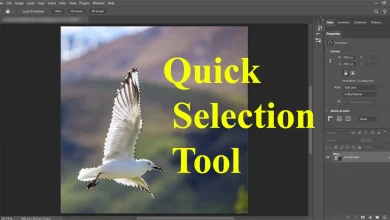
- Quick Selection Tool
- Select and Mask Workspace
- Refine Edge Brush Tool
In some situations, combining these tools produces much cleaner results than relying on only one method.
You can learn more about how these tools work together inside the Photoshop Selection Tools hub.
Detailed Guide: Hair Selection Workflow
Step 1 — Start with Object Selection Tool
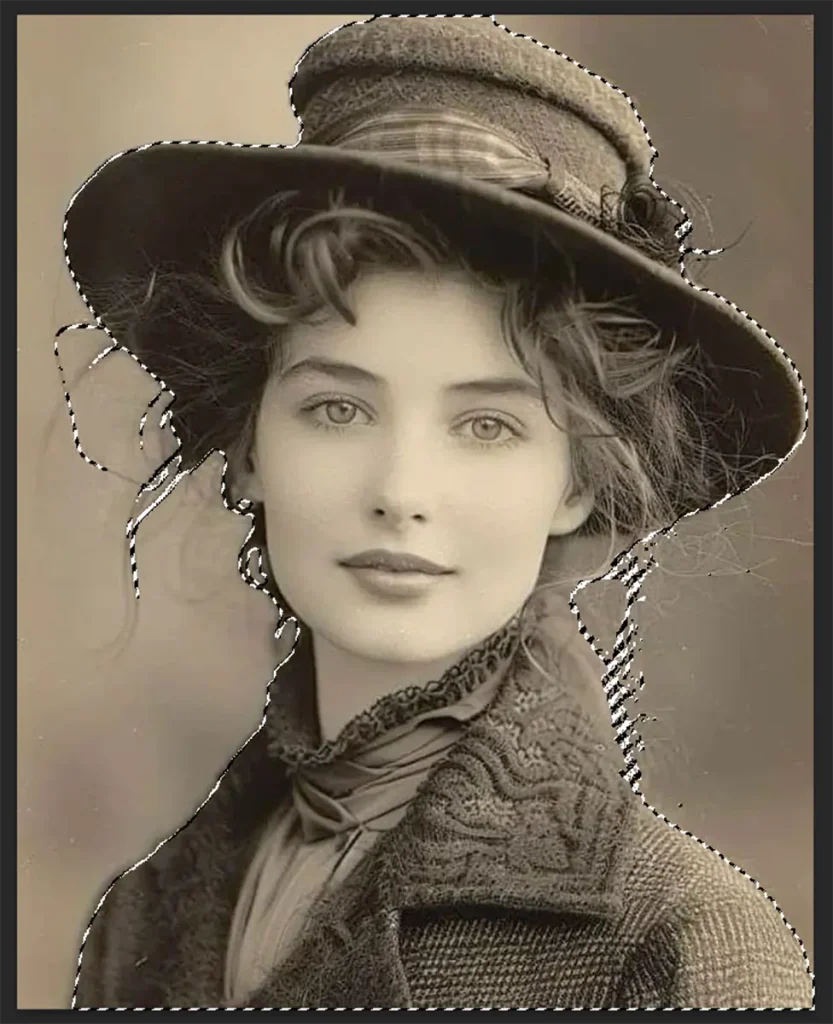
Choose the Object Selection Tool and drag around the subject.
Photoshop will automatically detect the person and create an initial selection.
Why this step matters
This creates the foundation of the selection quickly and saves time compared to manual tracing.
Step 2 — Open Select and Mask
After making the initial selection:
- Go to Select → Select and Mask
This workspace is designed specifically for improving difficult edges like hair and fur.
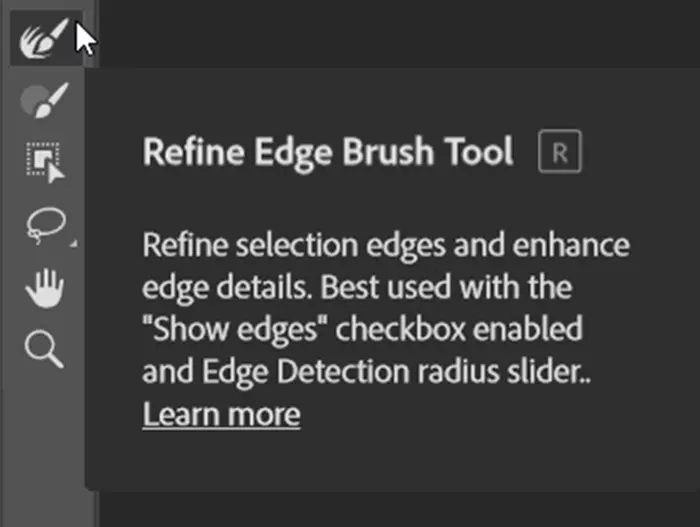
Step 3 — Use the Refine Edge Brush Tool
Select the Refine Edge Brush inside the Select and Mask workspace.
Then:
- paint gently around hair edges
- focus on soft transition areas
- avoid brushing large sections unnecessarily
Photoshop analyzes nearby pixels and attempts to recover fine strands automatically.
A Common Editing Task: Removing a Background from a Portrait
Goal:
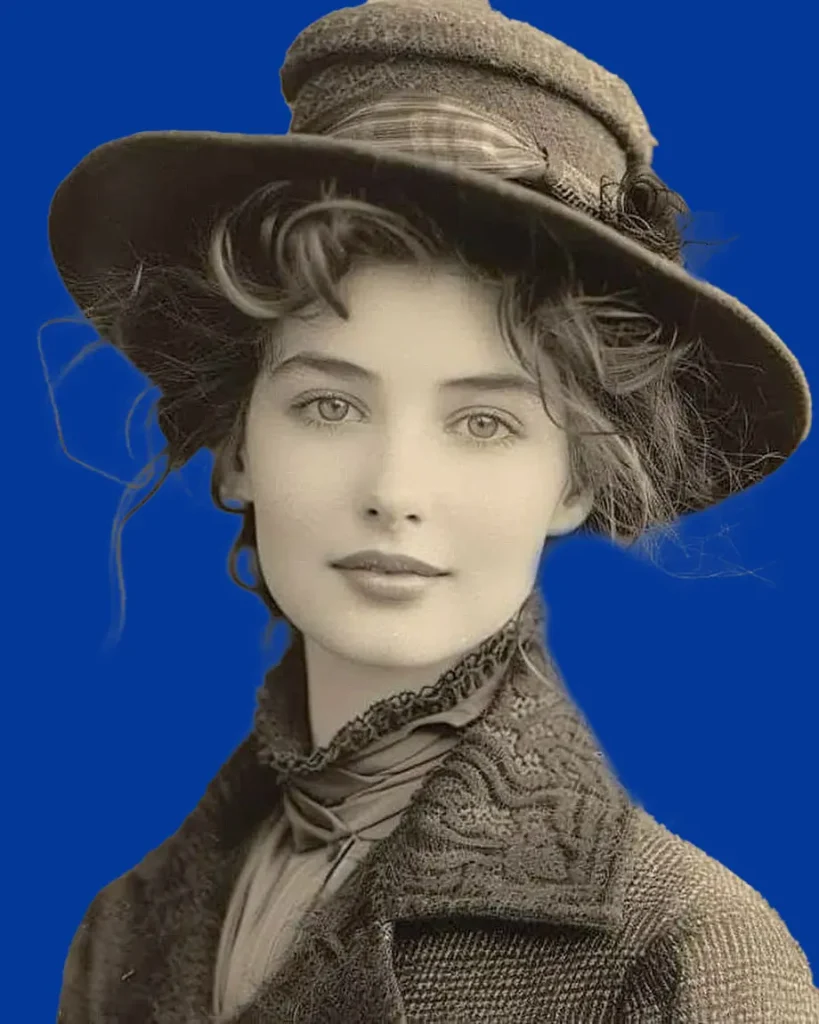
Place a portrait on a new background while preserving realistic hair detail.
Workflow:
- Select the subject using Object Selection Tool
- Open Select and Mask
- Refine hair edges carefully
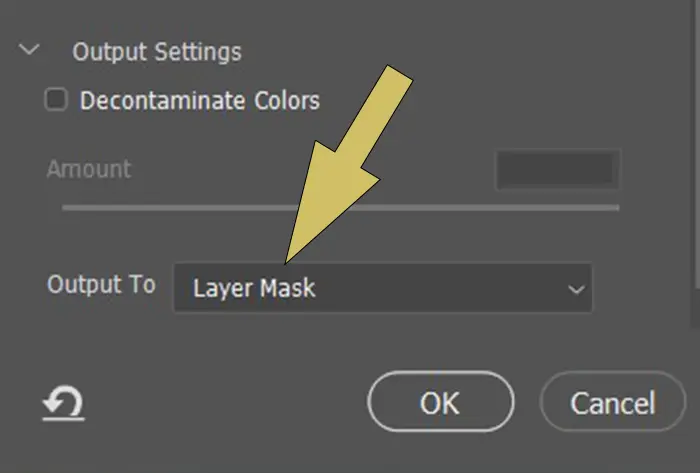
- Output the result as a Layer Mask
- Place a new background layer underneath
Important Tip
Do not zoom out too early. Hair problems often become visible only when viewed closely.
Mistakes to Avoid
Using only one selection tool
Hair selection often requires multiple tools working together.
Over-refining edges
Applying too much edge refinement can create blurry or glowing outlines around hair.
Ignoring background contrast
Hair is easier to select when the background has strong contrast.
If the subject blends into the background, manual cleanup may still be necessary.
How to Improve Difficult Hair Selections
Sometimes Photoshop cannot recover all hair strands automatically.
In those cases:
- use smaller brushes
- manually clean edge areas
- combine masking with soft brush adjustments
Professional retouching usually involves both automatic and manual refinement.
Quick Selection vs Object Selection for Hair
Both tools can help with hair selection, but they behave differently.
Object Selection Tool
- faster for detecting subjects
- better for modern Photoshop workflows
Quick Selection Tool
- better for manually controlling specific areas
- useful when automatic detection fails
Choosing the right tool depends on the image and background complexity.
Why Natural Edges Matter
One of the biggest mistakes beginners make is trying to create overly sharp hair selections.
Real hair contains:
- soft transitions
- transparency
- uneven strands
Keeping some natural softness usually produces more realistic results than over-cleaning the edges.
Summary
Hair selection is not about finding a magic button inside Photoshop. It is about understanding how different selection tools work together in a real editing workflow.
The more you practice combining Object Selection, Quick Selection, and Select and Mask techniques, the easier it becomes to preserve natural detail while removing complex backgrounds.
Instead of chasing perfect edges, focus on creating selections that look believable in real projects.
Sources