Photoshop Brush Tool | How to Use
Photoshop Brush Tool, where it is and shortcut


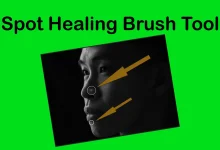
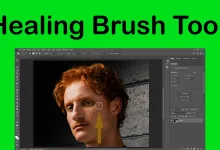
You can paint on any layer with the Photoshop Brush Tool, which functions much like a traditional paintbrush. Additionally, you will have a variety of settings to select from, which provide you with the ability to personalize them for a variety of circumstances. After becoming familiar with the Brush Tool, you will discover that a large number of other tools, such as the Eraser and the Spot Healing Brush, make use of a group of parameters that are quite similar to the Brush. Please take a look at Basic Photoshop Tutorials for Beginners to read more about Photoshop tools.
How to use the Brush Tool
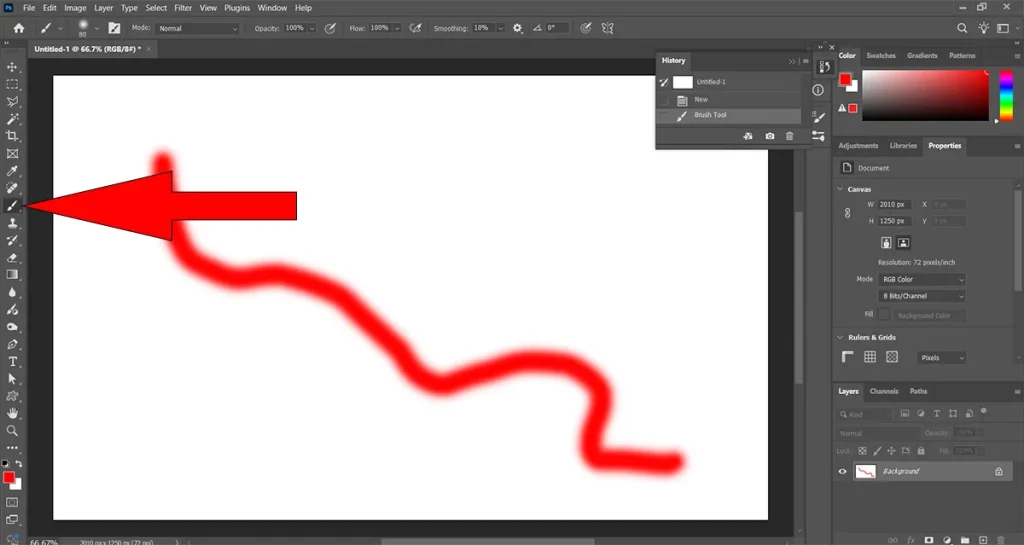
Painting in your document with the Photoshop Brush Tool is simple. To paint, find the Brush Tool in the Toolbar, pick it, and then click and drag in the document window. Additionally, you may always choose the Brush by pressing the B key on your keyboard.
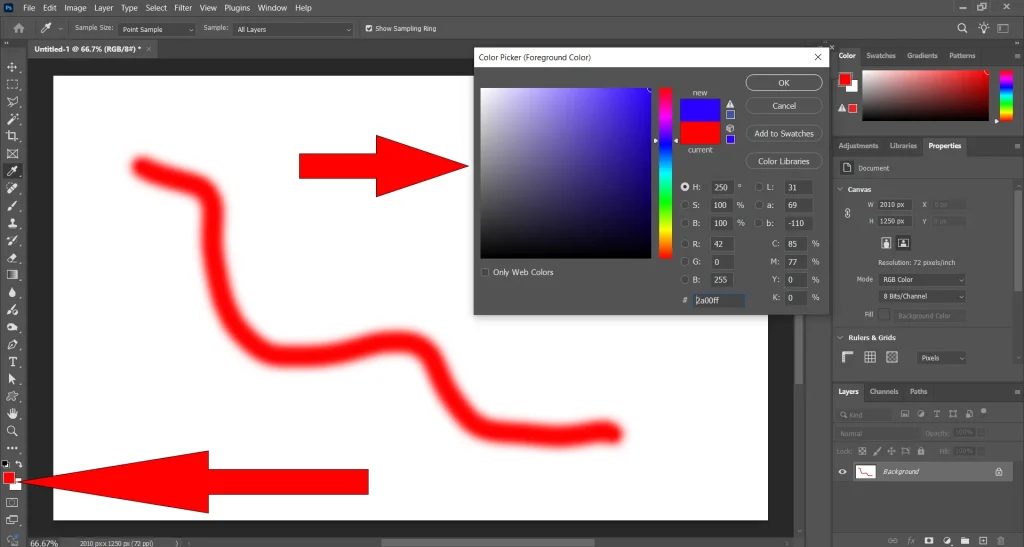
To change the color of the brush, click the color that is at the top of the Color Picker Tool (also called the Foreground Color) and then pick the color you want from the dialog box.
Option Bar for Brush Tool
There is also an Option Bar near the top of the screen where you can change how the Photoshop Brush Tool works.
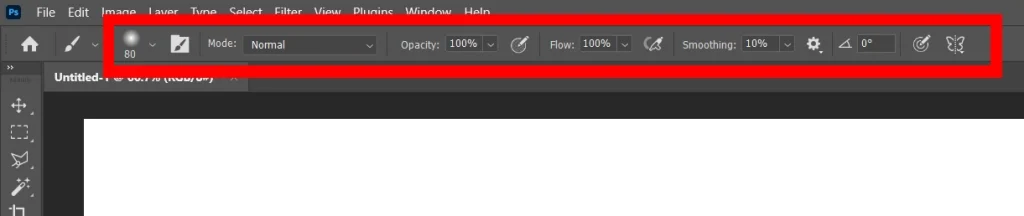
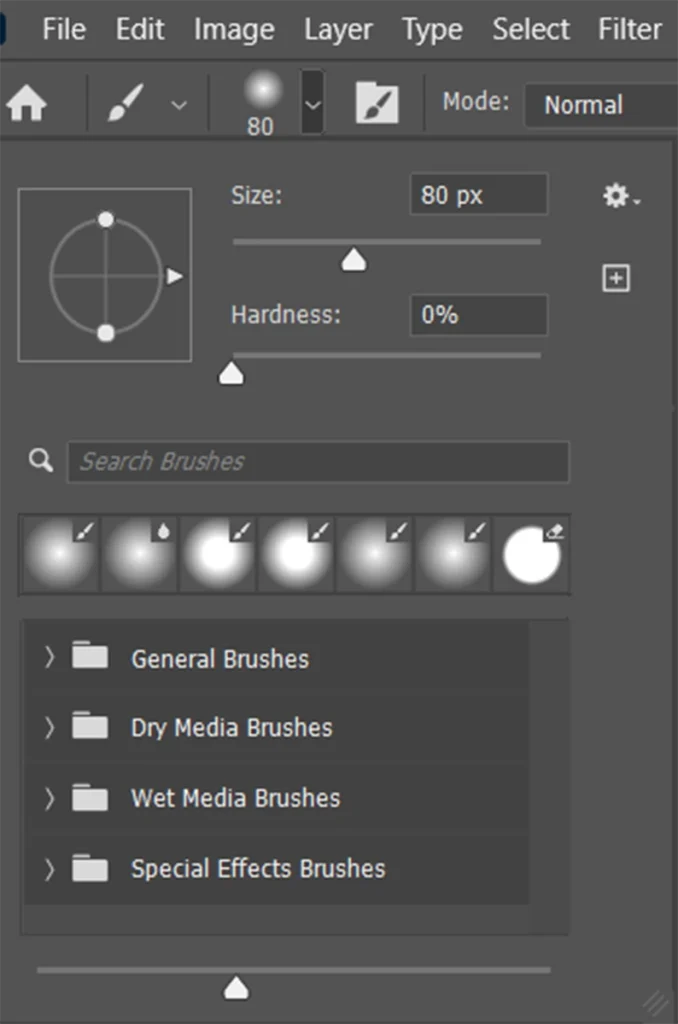
- Brush Size: Click on it to set the brush size.
- Hardness: From the same drop-down menu, you can change the Hardness to make the edges of the brush better or worse. The edges of a harder brush will be clear and well-defined, while the edges of a softer brush will be fuzzy and less well-defined. It is best to keep the roughness at 50% or less most of the time so that individual brush strokes are less noticeable.
- Brush Tip: From the same drop-down menu, you can select several brush tips to give your work a one-of-a-kind look. While some are more complex and aim to imitate traditional sketching implements, others are more straightforward.
- Opacity: Your brush will use the greatest intensity by default because its opacity is set to 100%. To lessen the intensity, lower your brush’s opacity.
- Brush Flow: Brush Flow in Photoshop regulates how quickly paint is applied with each stroke.
- Smoothing: helps produce smoother, more consistent lines by giving your brush a small leash or delay. This may be accessed in the Photoshop Brush Tool Settings or Options Bar and is adjusted via a percentage slider (0–100%).
Sources