Object Selection Tool in Photoshop
Select People & Objects Faster


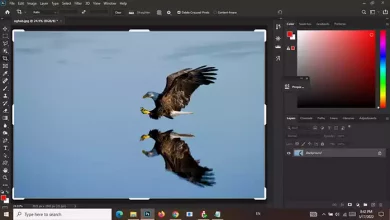
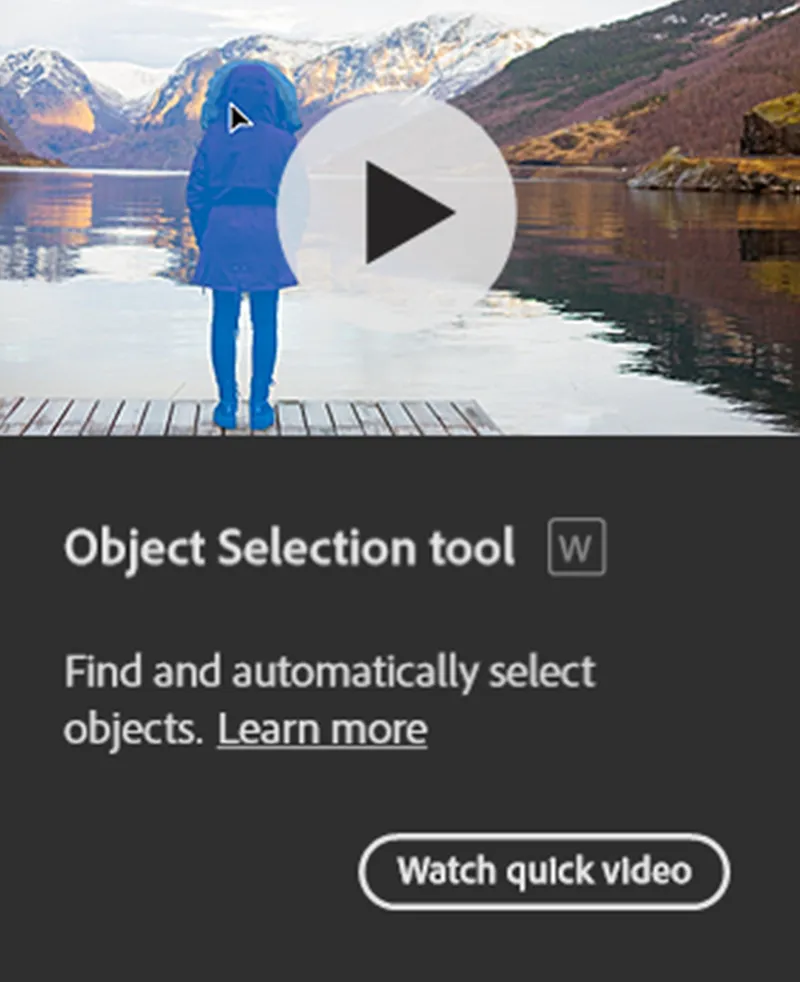
The Object Selection Tool is designed to detect and select entire objects automatically.
Instead of manually drawing around subjects, Photoshop uses smart detection to identify people, products, animals, and other clear objects.
This guide shows you:
- What the Object Selection Tool does
- How to use it properly
- When it works best
- Common mistakes
- A beginner-friendly project to practice
I’ve included the Basic Photoshop Tutorials for you to read more about Photoshop basics.
Topics
What Is the Object Selection Tool?
The Object Selection Tool analyzes your image and finds objects automatically.
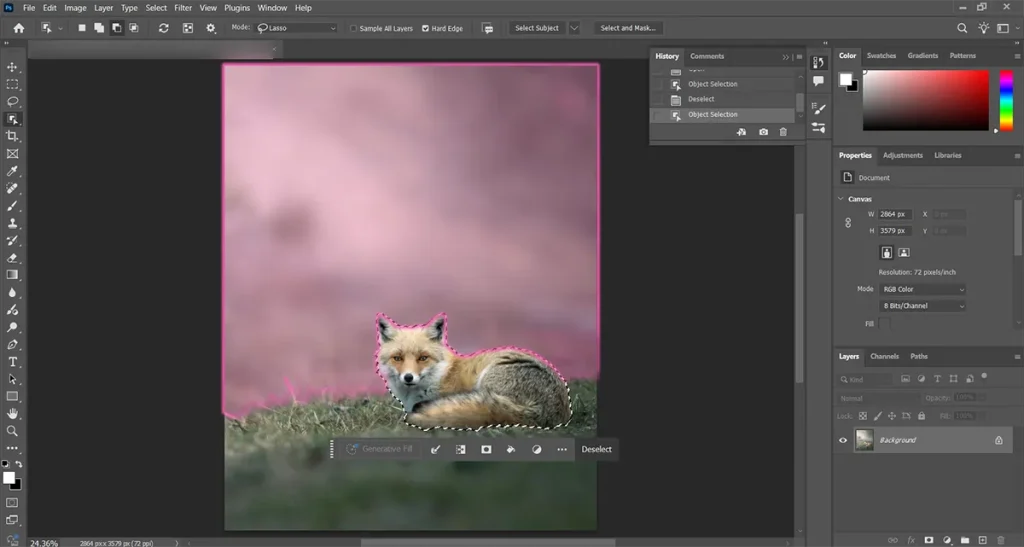
You simply draw a loose box around the subject, and Photoshop tries to select the entire object for you.
This tool works best on:


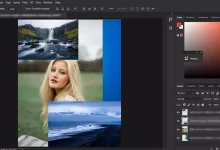
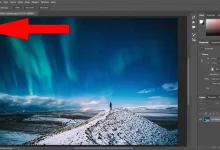
- Clear subjects
- People and products
- High-contrast images
- Simple compositions
It struggles with:
- Busy backgrounds
- Overlapping objects
Low-contrast subjects
How to Use the Tool
- Select the tool from the Toolbar
- Choose Rectangle or Lasso mode
- Draw a loose box around the object
- Let Photoshop automatically detect the subject
- Refine edges using edge refinement tools if needed
- Convert the selection into a mask for clean edits
Beginner tip:
Don’t try to be precise when drawing the box. The tool works better with a rough selection.
When Should You Use the Object Selection Tool? (Real Use Cases)
Use this tool when:
- You need to isolate people from backgrounds
- You’re editing product photos
- You want fast selections for thumbnails
- You’re removing backgrounds for social media
Avoid relying on it alone when:
- Hair details are very complex
- The background blends with the subject
- Objects overlap heavily
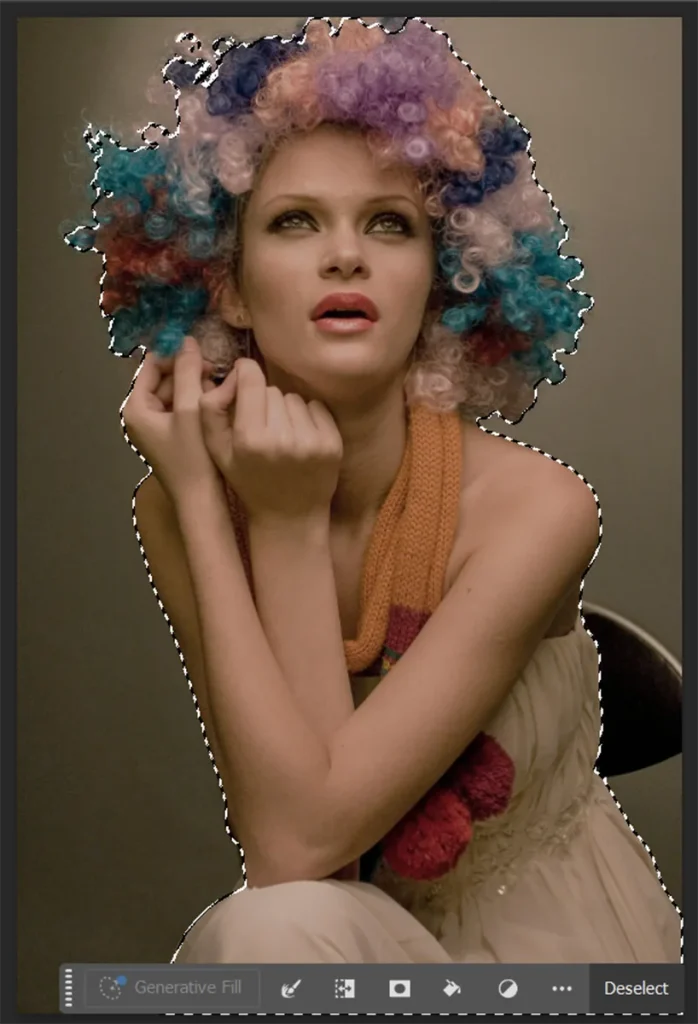
Although the Object Selection Tool can detect subjects automatically, selecting hair often requires additional refinement. See How to Select Hair in Photoshop Without Losing Detail for a complete example.
Common Beginner Mistakes
- Drawing too tight around the subject
✔ Fix: Draw a loose box to let Photoshop detect edges naturally. - Accepting the first result blindly
✔ Fix: Always zoom in and check edges before applying edits. - Skipping refinement
✔ Fix: Refine edges after automatic selection for clean results. - Using it on low-contrast images
✔ Fix: Increase contrast slightly before selecting, if needed.
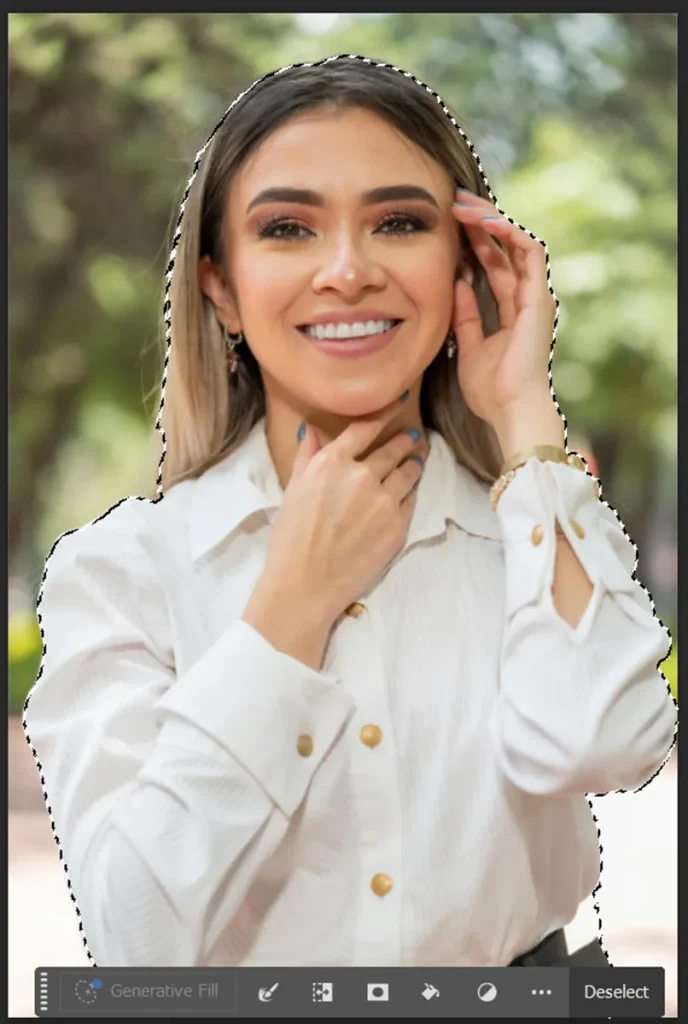
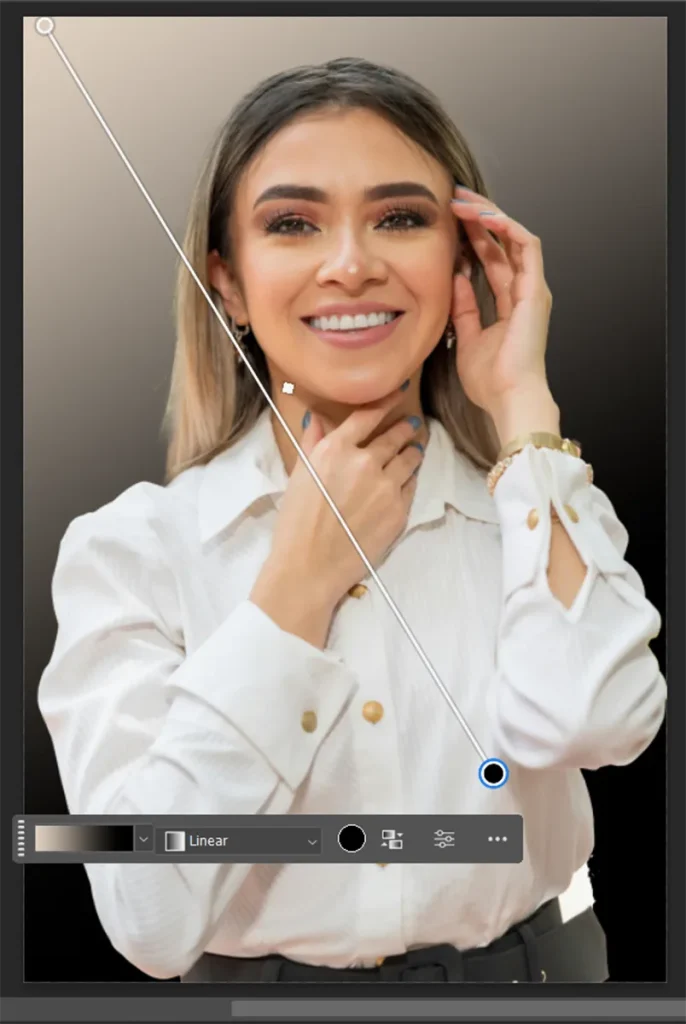
Mini Project: Remove Background from a Portrait
Goal
Isolate a person from the background for a profile image.
Steps
- Open a portrait photo.
- Select the Object Selection Tool.
- Draw a loose box around the person.
- Refine the edges around hair and shoulders.
- Replace the background with a simple color or gradient.
Result
You’ll get a clean cutout suitable for profile photos or thumbnails.
Object Selection Tool vs Other Selection Tools
- Object Selection Tool → Best for fast object detection
- Magic Wand Tool → Best for flat color backgrounds
- Marquee Tools → Best for simple shapes
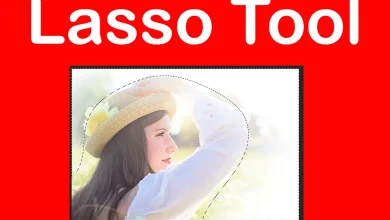
- Lasso Tools → Best for rough manual selections
Smart workflow:
Start with Object Selection, then refine the edges for professional results.
Continue Learning Selections
- Learn all selection tools: Photoshop Selection Tools – Beginner Hub
- Follow the full learning path: Ultimate Photoshop Beginner Guide
- Explore all tools: Photoshop Toolbar – Full Guide
Sources
https://helpx.adobe.com/photoshop/