
Ultimate Photoshop Beginner Guide: Learn Photoshop Step by Step with Real Projects

If you’re new to Photoshop, learning tool by tool can feel confusing. You may know what a tool does, but not when to use it or how to combine tools to edit real photos.
This guide is designed to help you learn Photoshop the right way:
1. step by step,
2. with real beginner-friendly projects,
3. and with clear links to the exact tools you need.
By the end of this guide, you’ll be able to confidently edit photos, remove backgrounds, retouch portraits, and prepare images for social media — even if you’ve never used Photoshop before.
Topics
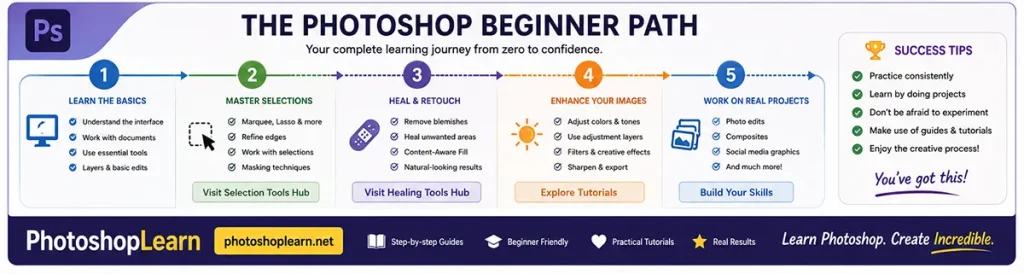
Getting Started with Photoshop (For Absolute Beginners)
Before editing any image, you should understand the Photoshop workspace.
In this step, you’ll learn:
- Where to find the main tools in the Photoshop Toolbar
- How to zoom, move around the canvas, and rotate your view
- How to open images and save your work correctly
Recommended tools to learn first:
Move Tool, Zoom Tool, Hand Tool, Rotate View Tool
Once you feel comfortable moving around the workspace, you’re ready to start editing real photos.
Beginner Projects
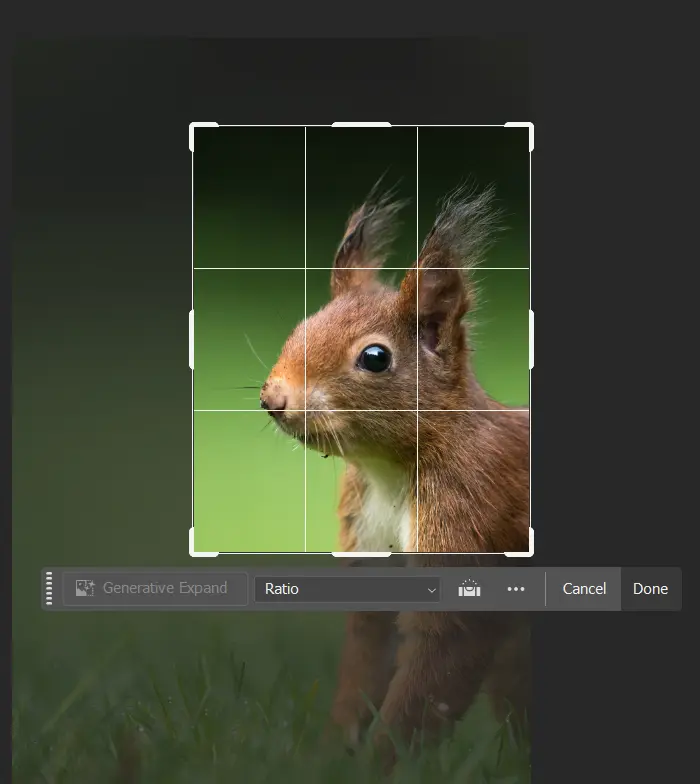
1: Crop and Fix a Photo for Social Media
Let’s start with a simple and useful project: preparing a photo for Instagram or a website.
In this project, you will learn how to:
- Crop an image to the correct size
- Fix tilted or distorted photos
- Improve the composition
Tools you will use in this project:
What you’ll achieve:
You’ll be able to turn a messy photo into a clean, well-framed image in just a few minutes.
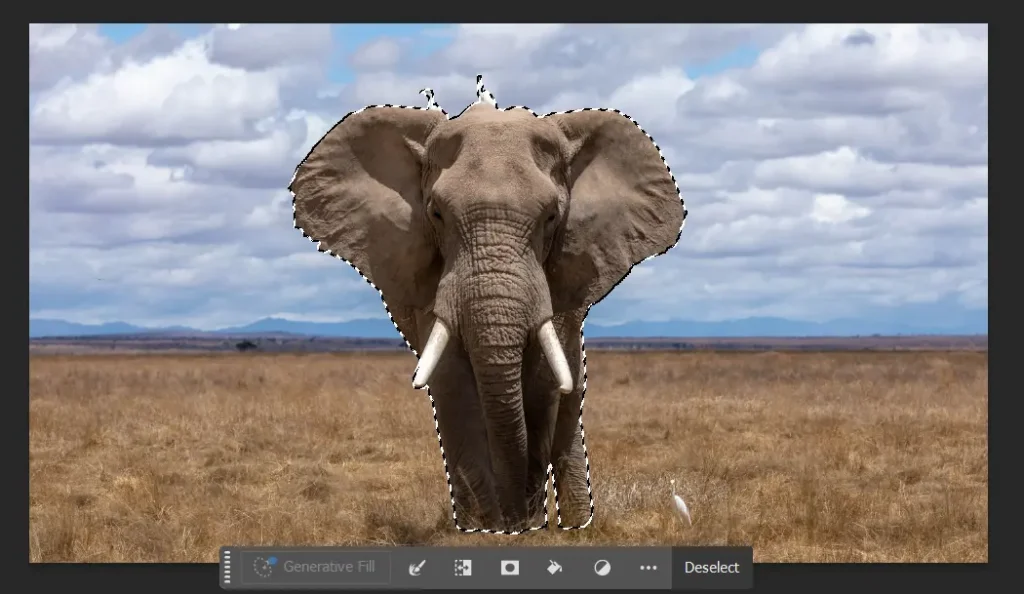
2: Remove the Background from an Image
Removing backgrounds is one of the most common real-world Photoshop tasks.
In this project, you’ll learn how to:
- Select objects accurately
- Remove unwanted backgrounds
- Create clean cutouts for product photos or portraits
Tools you will use:
- Object Selection Tool
- Quick Selection Tool
- Magic Wand Tool
- Refine Edge (Select and Mask)
What you’ll achieve:
You’ll be able to isolate a subject and place it on a new background.
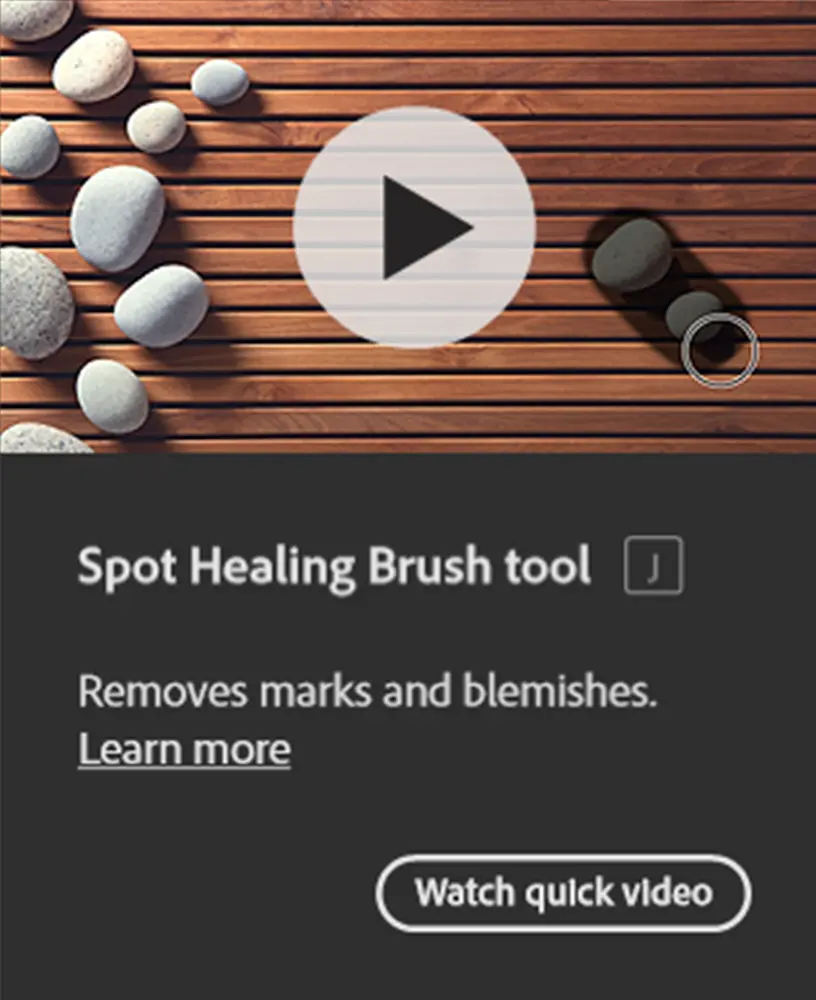
3: Basic Portrait Retouching
Simple portrait retouching can make a huge difference — even with just a few tools.
In this project, you’ll learn how to:
- Remove small blemishes
- Clean up skin without over-editing
- Fix red-eye problems
- Improve small details
Tools you will use:
- Spot Healing Brush Tool
- Healing Brush Tool
- Red Eye Tool
- Clone Stamp Tool
What you’ll achieve:
Natural-looking portrait improvements without making faces look fake.
4: Create a Simple Photo Effect
Once you understand the basics, adding effects becomes much easier.
In this project, you’ll learn how to:
- Apply simple blur effects
- Sharpen important areas
- Add gradients for creative looks
Tools you will use:
- Blur Tool
- Sharpen Tool
- Gradient Tool
- Dodge & Burn Tools
What you’ll achieve:
You’ll be able to add depth and visual focus to your photos.
Learn Photoshop Tools the Smart Way (Not One by One)
Instead of memorizing tools, learn them in context.
Here’s how to learn Photoshop faster:
- Learn tools through small projects
- Combine 2–3 tools for each task
- Practice on real photos
- Focus on results, not just tool names
You can explore the full Photoshop Toolbar and its tools here:
Getting to Know the Photoshop Toolbar and Its Tools
Your Next Steps in Photoshop
Now that you’ve completed these beginner projects, here’s how to continue learning:
- Practice one small project every day
- Revisit tool guides when you get stuck
- Try slightly harder edits (product photos, old photo restoration, creative effects)
- Build a small personal project (your own photo collection)
If you follow a project-based learning path, you’ll improve much faster than learning random tools without a goal.
Recommended Learning Paths
- Photoshop Basics (Tools & Workspace)
- Selections Tools in Photoshop
- Healing Tools in Photoshop
- Photo Editing Techniques for Beginners
- Real Photoshop Projects for Beginners