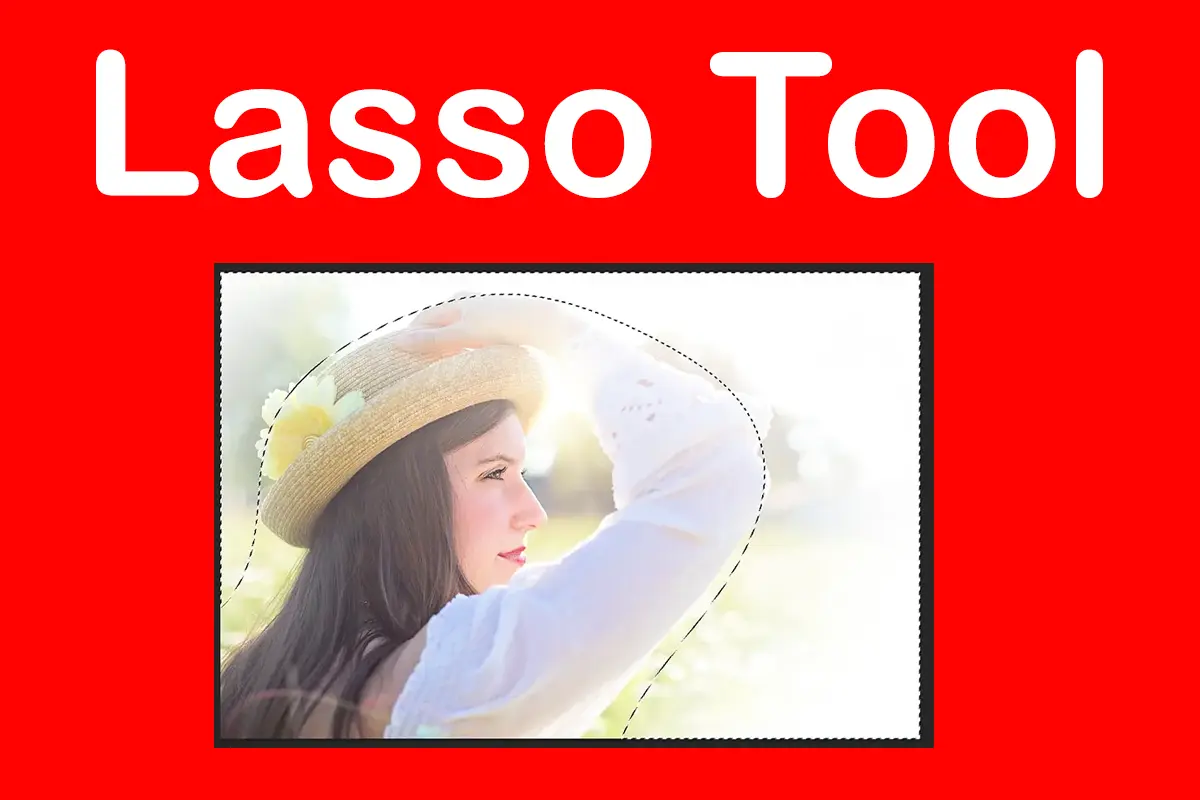
The Lasso Tool in Photoshop is one of the simplest yet most flexible selection tools. Unlike automatic tools, it gives you full control to draw a selection manually around any object.
If you’re learning how selections work, this tool is a great starting point—especially when combined with other tools explained in the Photoshop Selection Tools and the main Photoshop Toolbar.
Topics
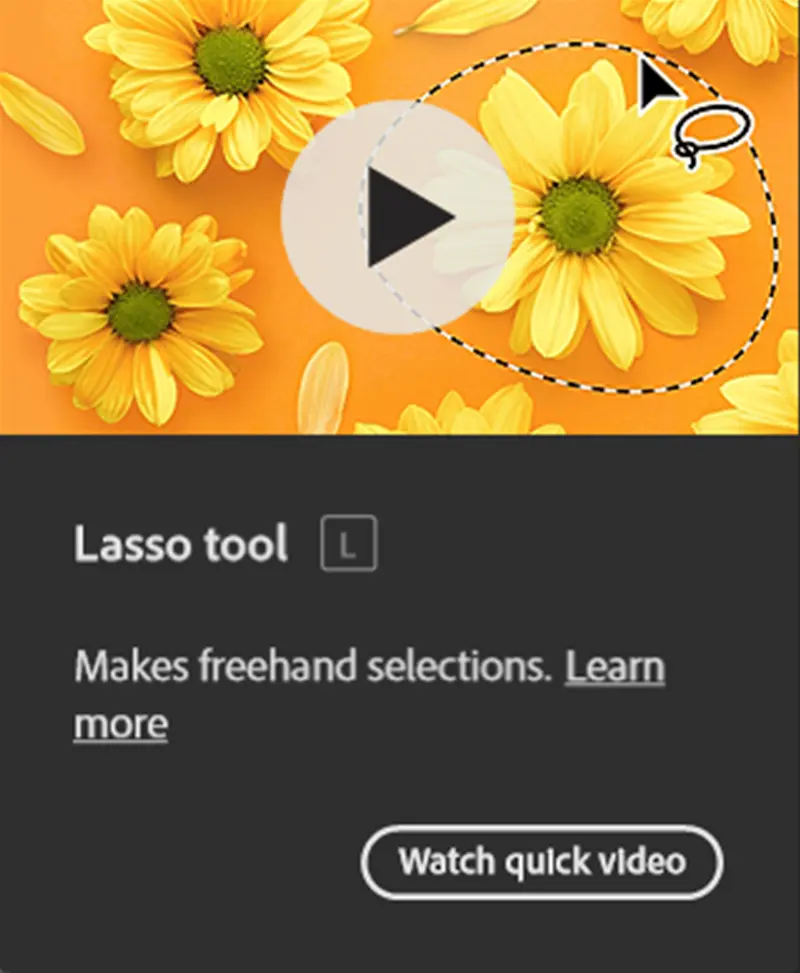
What Is the Lasso Tool?
This tool allows you to create a freehand selection by drawing around an object with your mouse or stylus. It’s ideal when:
1_ The object has an irregular shape
2_ Automatic tools fail to detect edges properly

3_ You need quick, rough selections
You can find it in the toolbar (shortcut key L) along with its variations:
1_ Lasso Tool
2_ Polygonal Lasso Tool
3_ Magnetic Lasso Tool
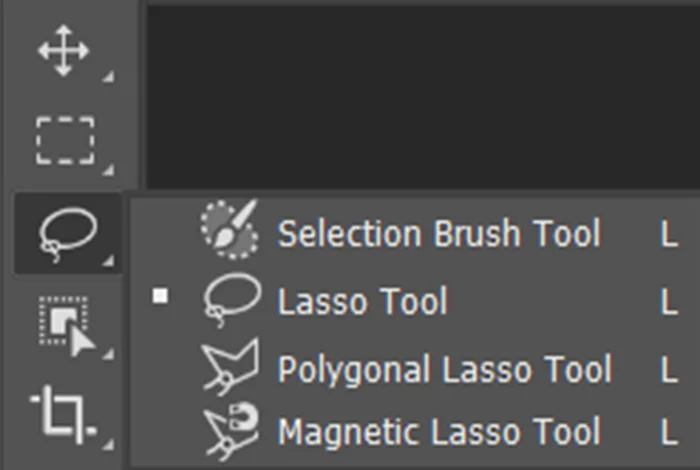
If you’re new to Photoshop, this tool is part of the essential basics covered in the Basic Photoshop Tutorials for Beginners.
How to Use the Lasso Tool
- Select the Lasso Tool from the toolbar
- Click and hold your mouse
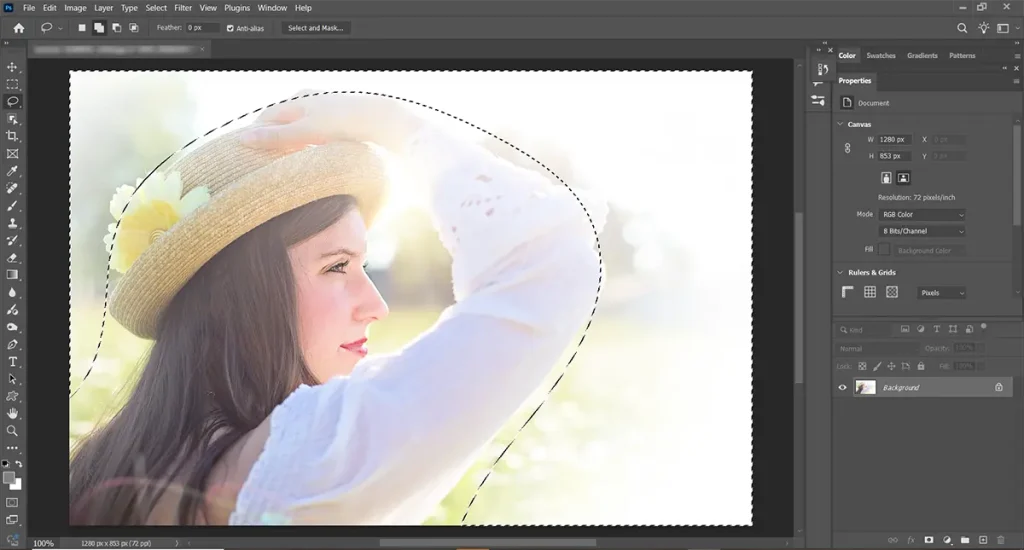
- Draw around the object you want to select
Release the mouse to close the selection
Once selected, you’ll see the “marching ants” around your shape.
Try to complete the selection in one smooth motion. If you release early, Photoshop will automatically close the shape.
When Should You Use the Lasso?
The Lasso Tool works best in situations where precision is less important than speed.
Good for:
- Rough cutouts
- Quick masking
- Isolating organic shapes
Not ideal for:
- Clean edges (use Pen Tool or Object Selection instead)
- Complex backgrounds
- High-detail editing
Quick Background Removal
Let’s say you want to remove a simple background behind a subject:
- Use the Tool to roughly outline the subject
- Go to Select > Modify > Feather (add 2–5 px)
- Then Select > Inverse (Shift + Ctrl + I)
- Press Delete or apply a mask.
This method is fast and surprisingly effective for simple images.
Comparing the Lasso Tool to Other Selection Tools in Photoshop
Each selection tool in Photoshop serves a different purpose:
1_ Lasso Tool → Manual and flexible
2_ Magic Wand Tool → Selects by color
3_ Object Selection Tool → Uses AI to detect subjects
To understand when to switch between them, check the full comparison inside the Photoshop Selection Tools.
Common Beginner Mistakes
1. Trying to be too precise
This tool is not meant for pixel-perfect selections.
2. Forgetting to feather edges
Hard edges can look unnatural—always soften slightly.
3. Not zooming in
Working too zoomed out leads to messy selections.
Tips for Better Selections
- Hold Shift to add to your selection
- Hold Alt (Option) to subtract
- Use Feather for smoother edges
- Combine with other tools for better results
Final Thoughts
The Lasso Tool may look simple, but it plays an important role in learning how selections work in Photoshop. It teaches control, shape recognition, and the basics of masking.
Once you’re comfortable with it, you can move on to more advanced tools—but you’ll still come back to this tool for quick edits.
For a deeper understanding of how all tools work together, explore the Photoshop Selection Tools and continue building your skills step by step.
Sources