

Screen is one of the most useful blend modes for creating light effects in Photoshop. Unlike darkening blend modes, Screen brightens the image and makes black pixels disappear, making it perfect for glow effects, light leaks, reflections, and atmospheric edits.
Instead of relying on complicated filters, many photographers and digital artists use Screen mode to create natural-looking highlights and soft light effects.
New to blend modes? Explore our complete Photoshop Blend Modes guide to understand how different blending modes affect your images.
Topics
Why Screen Mode Works for Glow Effects
Screen combines brightness values from two layers, resulting in a lighter image. Since black areas become transparent, only the bright parts remain visible.
This behavior makes Screen ideal for:

- Light rays
- Glow effects
- Lens flares
- Neon signs
- Reflections
- Atmospheric highlights
The effect looks natural because Screen enhances brightness without producing harsh contrast.
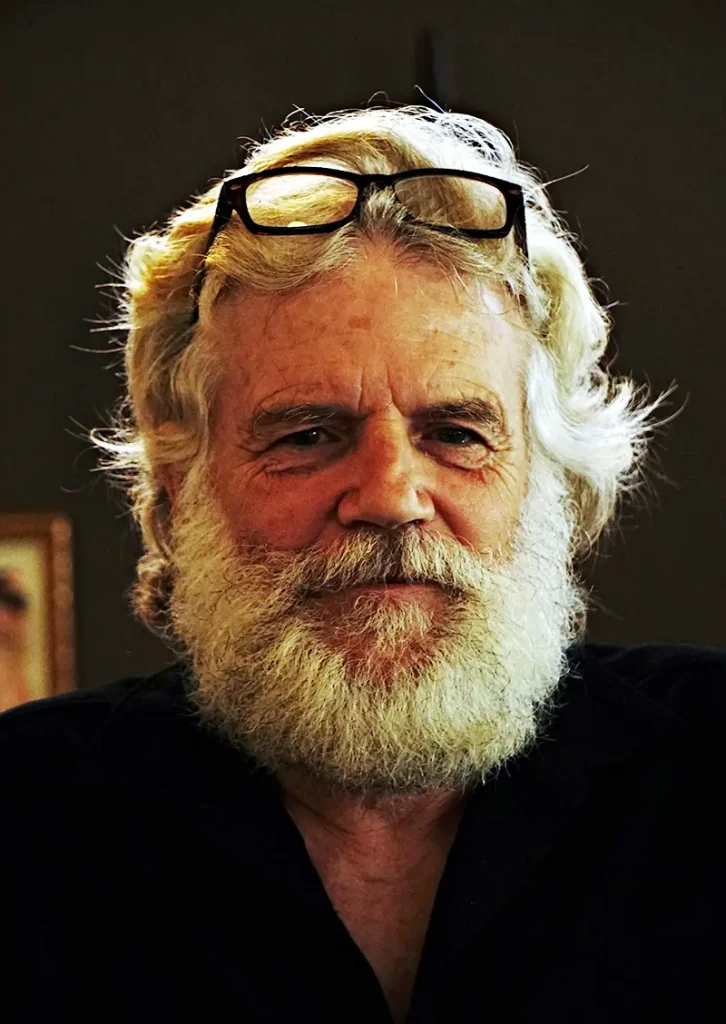
Simple Project: Create a Soft Portrait Glow
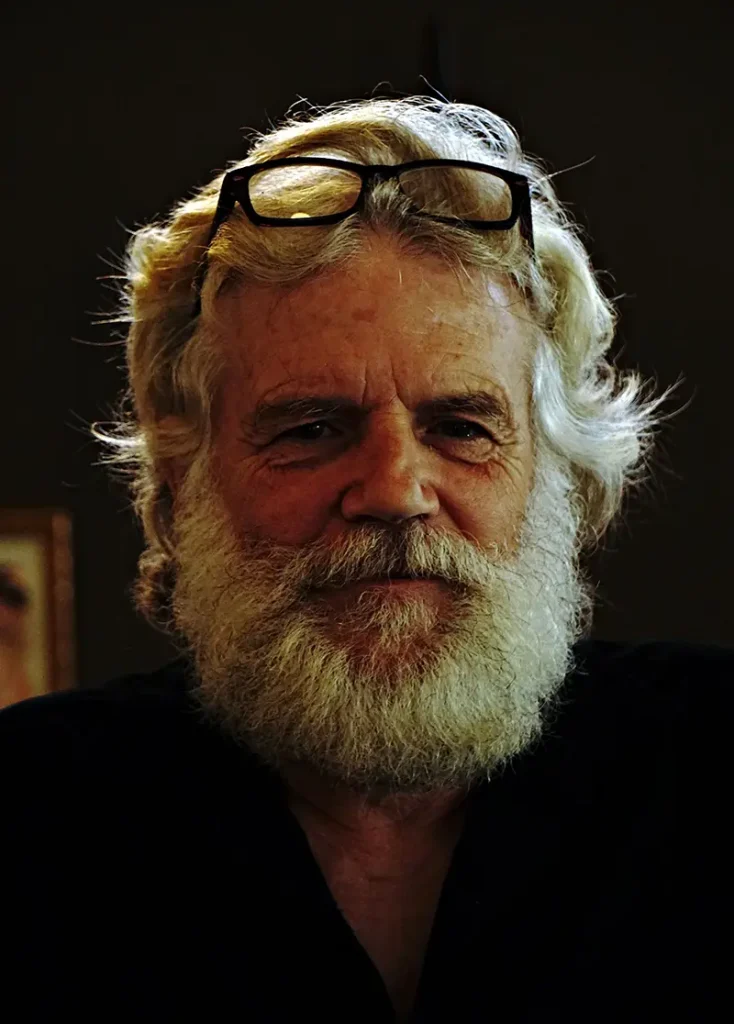
Imagine you want to create a dreamy portrait effect.
Duplicate the image layer and change the blend mode to Screen. The image immediately becomes brighter. Reduce the layer opacity until the effect looks balanced.
If the glow feels too strong, lower opacity instead of adding more adjustments.
This simple technique often produces cleaner results than aggressive filters.
Add Glow Using a Soft Brush
Create a new empty layer and select a soft round brush.
Use a warm color or white and paint around areas where light naturally exists, such as hair edges, reflections, or background lights.
Change the layer blend mode to Screen.
Lower opacity to create a subtle glow instead of an artificial effect.
Using Screen Mode with Blur
For stronger light effects, duplicate the painted glow layer and apply Gaussian Blur.
Because the layer is already using Screen mode, the blur spreads light smoothly and creates a soft cinematic atmosphere.
This technique works especially well for:
- Portrait photography
- Fantasy artwork
- Neon signs
- Night scenes
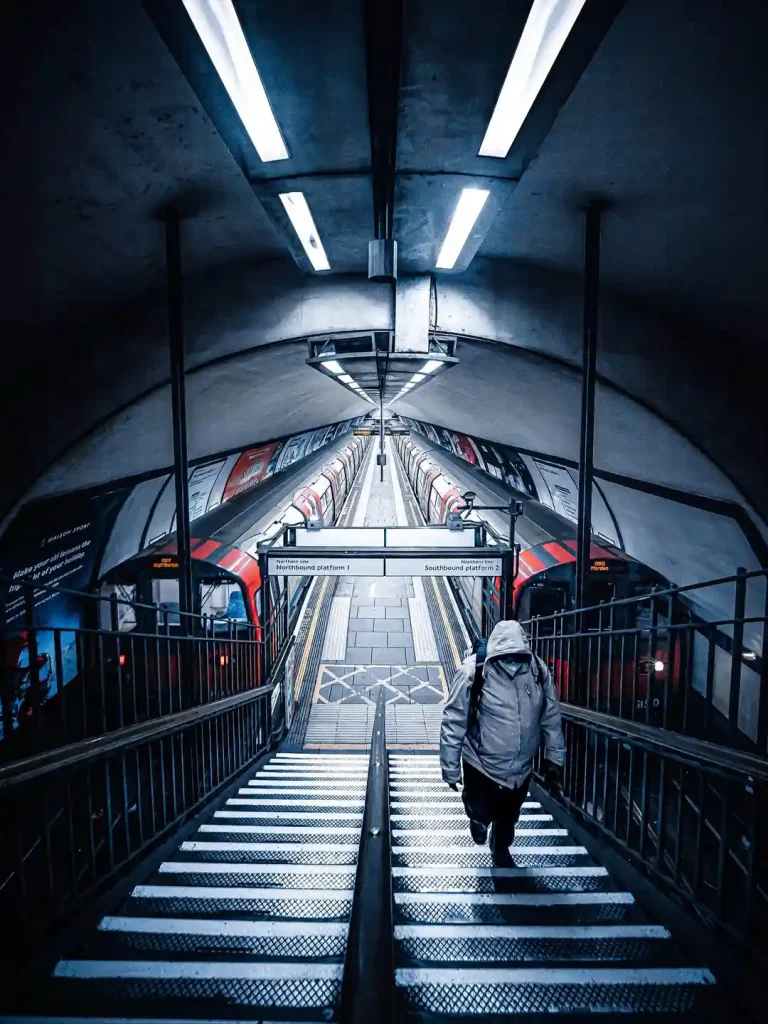
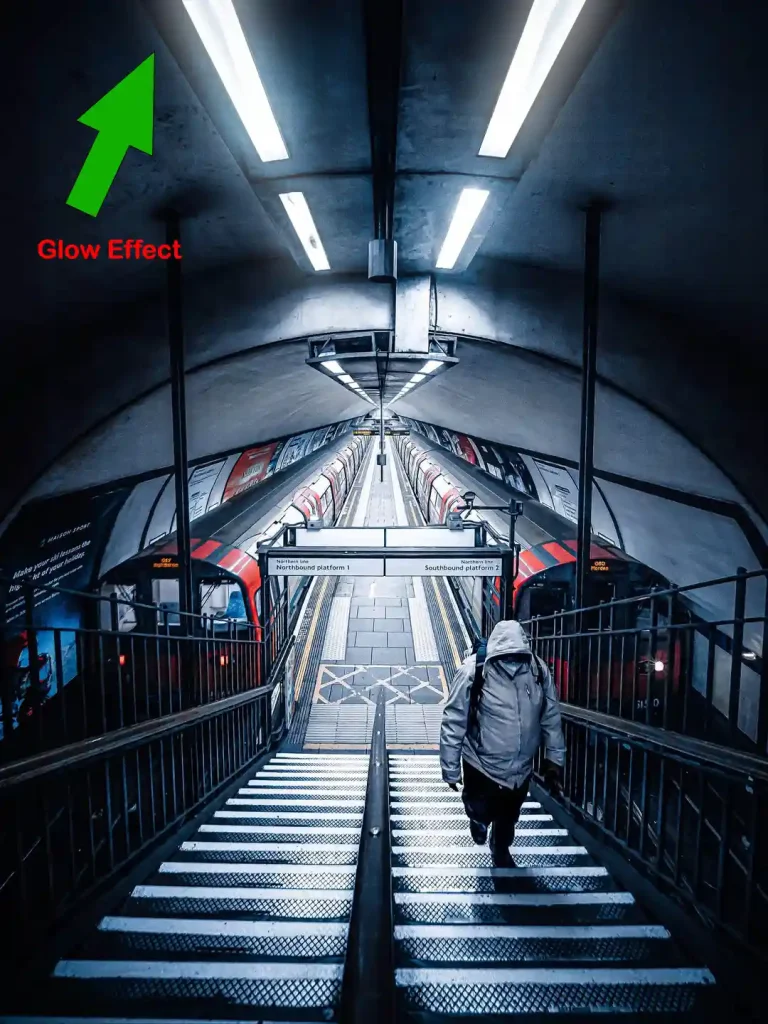
Editing Workflow: Making City Lights Glow
Suppose you are editing a night street photo.
Create a new layer and paint over lamps and bright windows with a soft brush.
Set the layer to Screen and reduce opacity.
Apply a small Gaussian Blur to spread the light naturally.
The result adds depth and atmosphere without making the image look unrealistic.
Looking for more creative editing techniques? Browse our Photo Editing Tutorials category for practical Photoshop projects.
Avoid Overusing Screen Mode
Too much brightness can remove contrast and wash out details.
Professional editors usually apply glow effects gradually and use lower opacity values.
Subtle lighting often creates more realistic results than extremely bright effects.
Screen vs Overlay for Glow Effects
Screen is designed to brighten images and works well for creating soft light.
Overlay increases contrast and saturation, making it better for texture enhancement rather than glow.
If your goal is creating highlights and luminous effects, Screen is usually the better choice.
Learn how contrast-based blend modes behave in our Overlay vs Soft Light comparison.
Putting It All Together
Screen mode is one of the easiest ways to create glow effects in Photoshop. Whether you’re editing portraits, city lights, or creative artwork, subtle adjustments and careful opacity control can produce much more convincing results than heavy filters.
Learning how to combine Screen mode with soft brushes and blur effects gives you a flexible workflow for creating realistic light in almost any project.
Need stronger shadows instead of glow? See Multiply vs Linear Burn to compare two popular darkening blend modes.
Sources