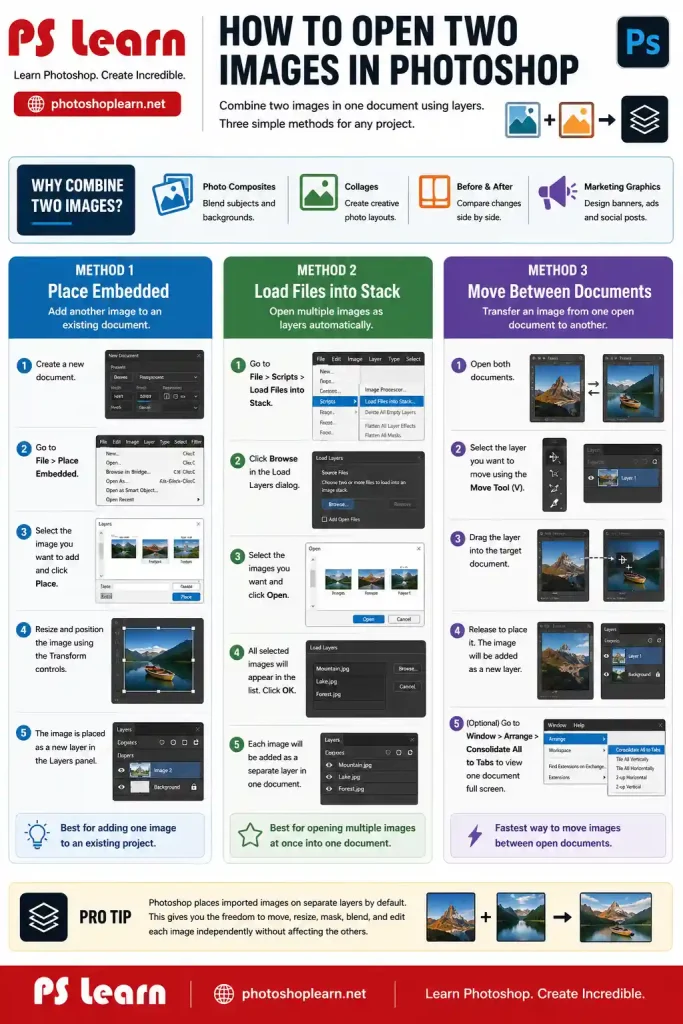
Sometimes you need to combine two photos into a single Photoshop document instead of working with them separately. This technique is useful for photo compositing, collages, before-and-after comparisons, and many other creative projects.
When Do You Need Two Images in One Document?
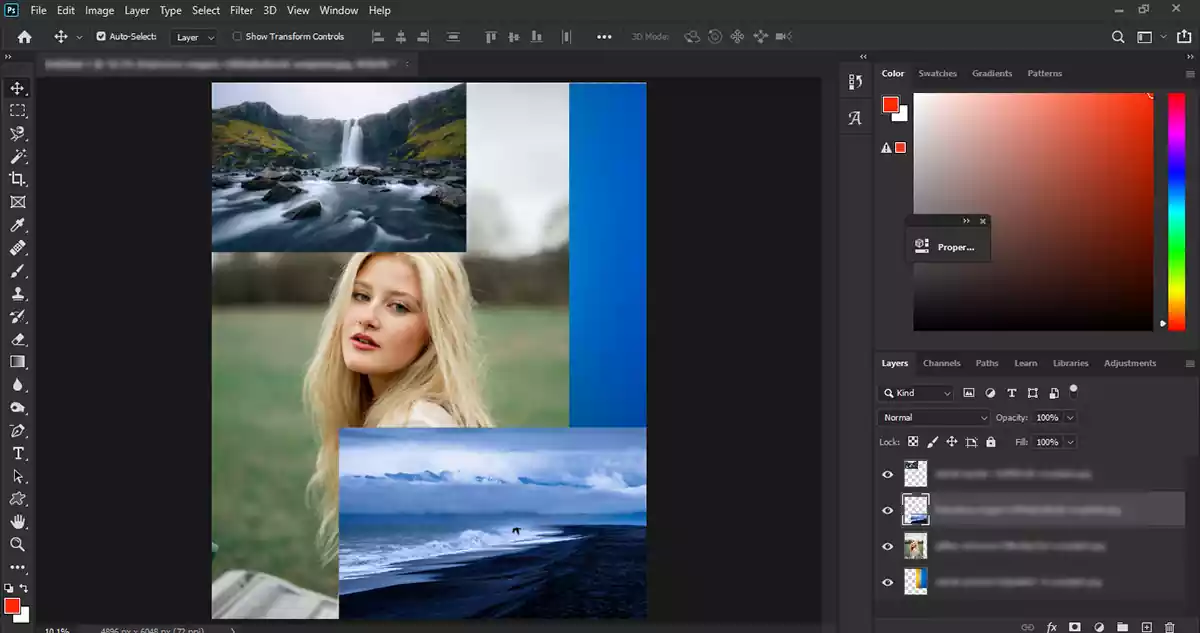
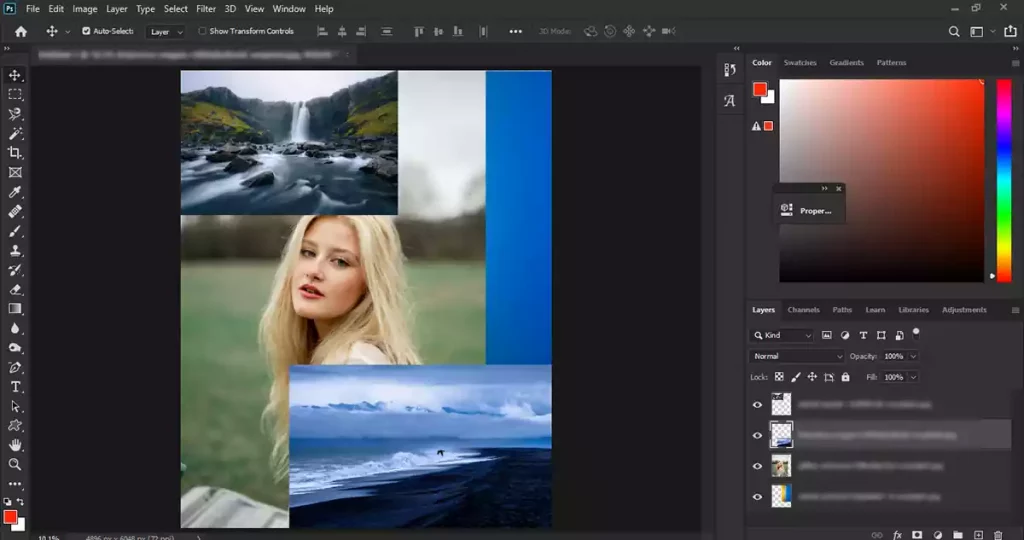
Working with multiple images in the same document is a common Photoshop workflow. You might want to create a photo collage, replace a background, combine several product photos, or build a marketing graphic that contains multiple visual elements. Understanding how to place images into the same document makes these tasks much easier.
Adding a Second Image to an Existing Document
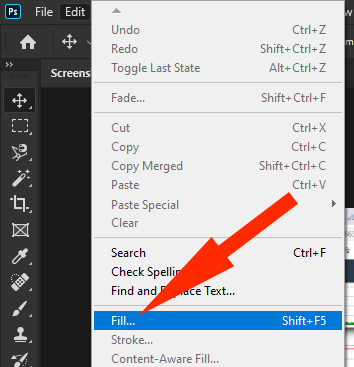
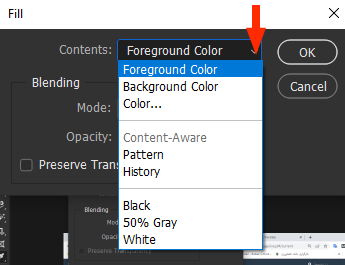
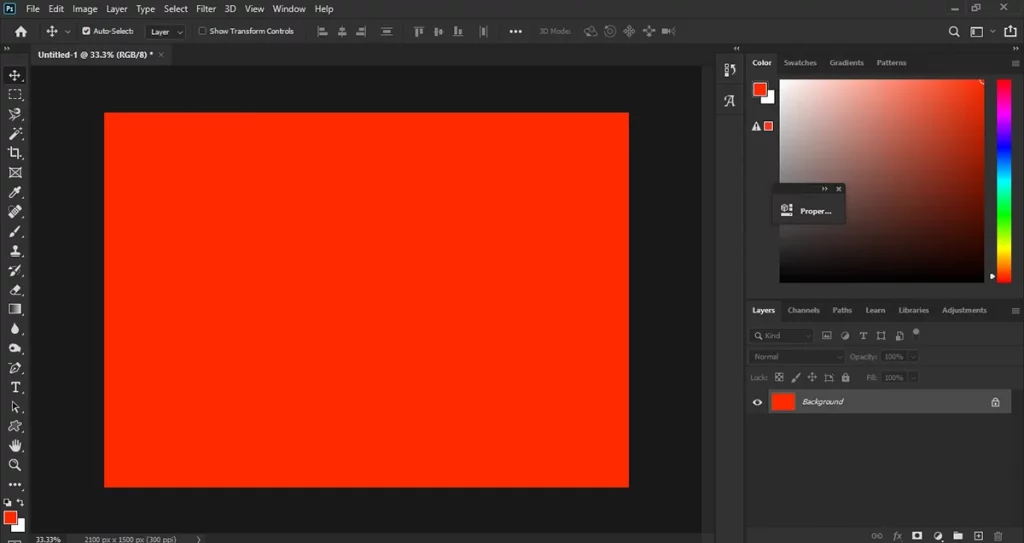
Start by creating a new document in Photoshop. You can use any canvas size that fits your project. Fill it with a solid color. From the Edit menu, choose Fill. Then, the fill box will open. You will have options for using foreground, background, or custom colors. If you’re learning Photoshop, explore our Basic Photoshop Tutorials category for beginner-friendly guides and essential editing techniques.
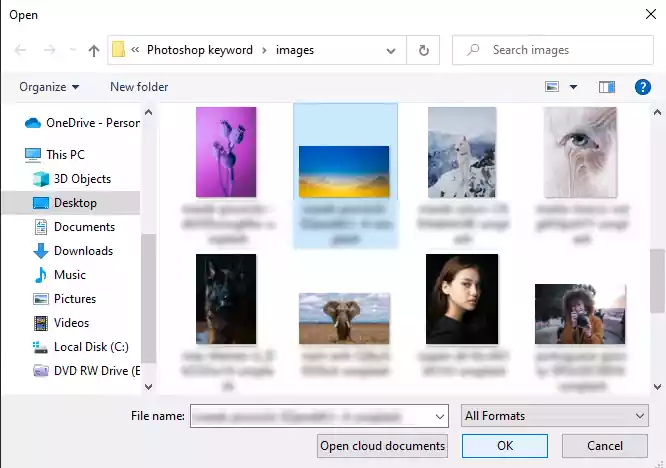
Then go to the File menu and choose Place Embedded to open the second image.
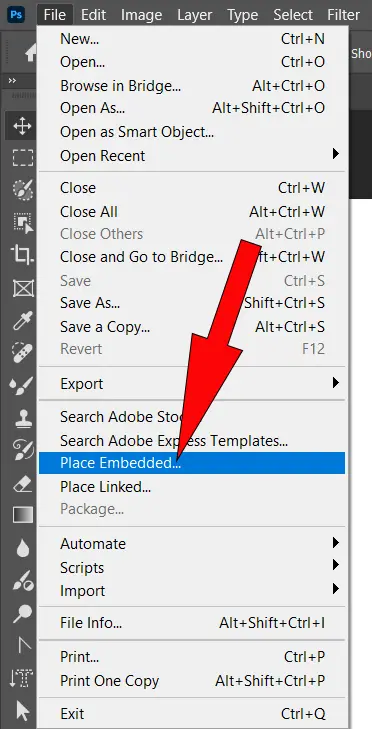
Now, you can select your favorite image from the opened box.
When you open the second image, the Transform Tool is automatically activated, and you can change its size and position in the document.
Need help creating the canvas first? Read our guide on how to create a new document in Photoshop before placing additional images.
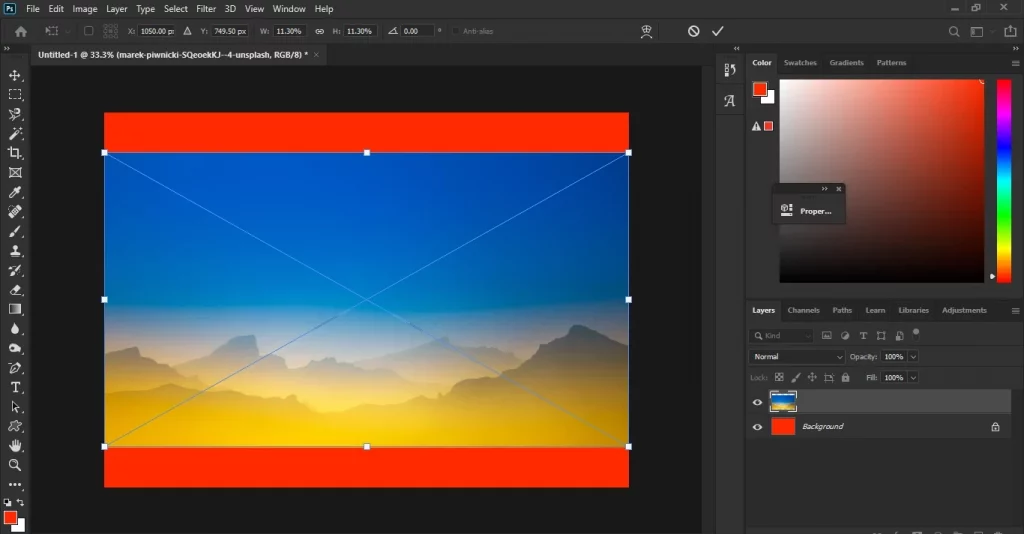
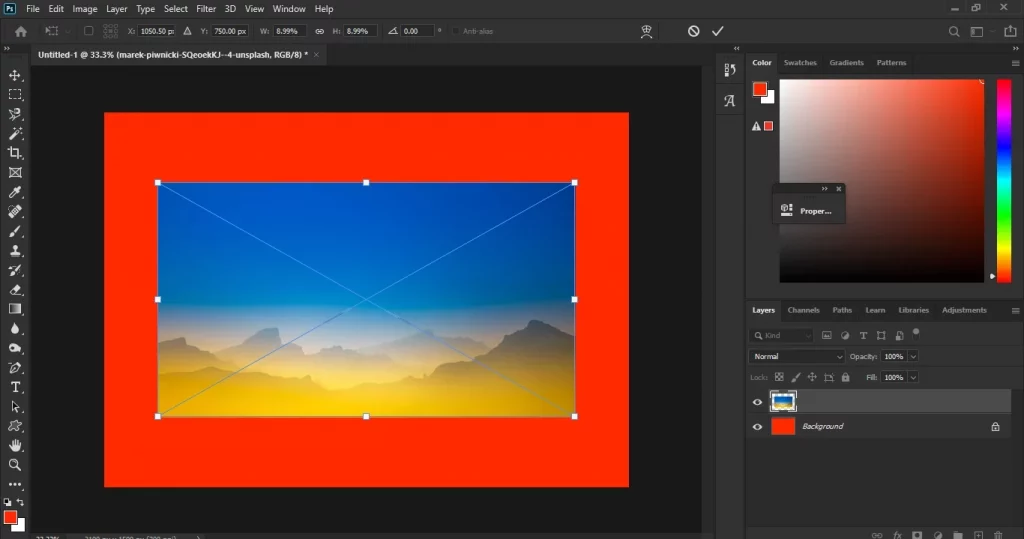
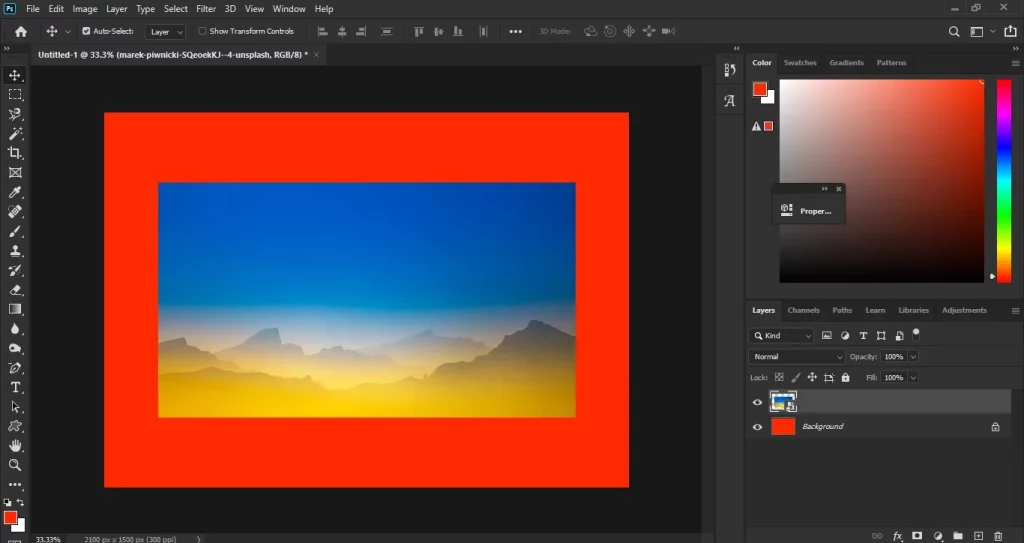
The new image is placed as a new layer in the document.
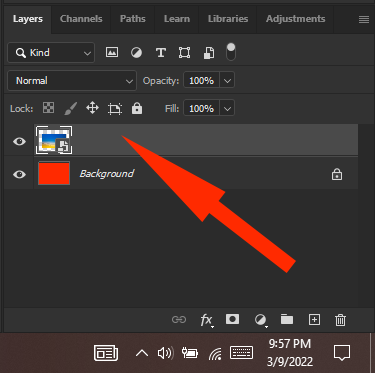
Why Photoshop Places the Image on a New Layer
When you use Place Embedded, Photoshop automatically adds the new image as a separate layer. This allows you to move, resize, hide, or edit the image without affecting other elements in the document.
How to open two images in Photoshop as layers
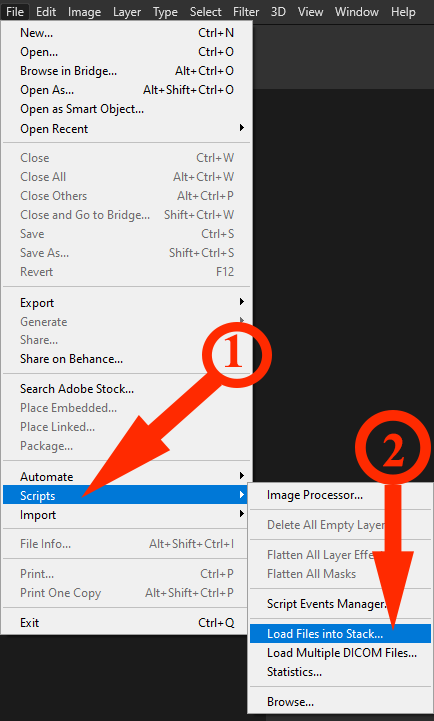
If you want to open multiple images in a file from the beginning, go to the File menu, choose Scripts, and select Load Files into Stack.
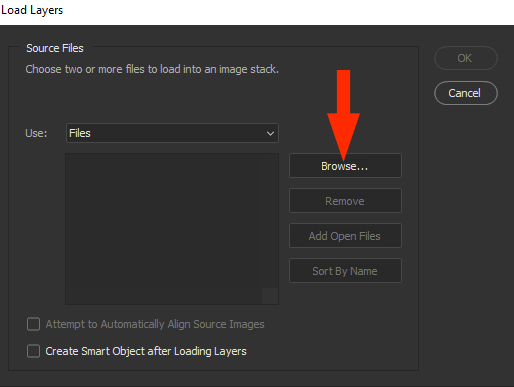
Click on the Browse when the Load Layers dialog appears.
Use the Browser to add the first image.
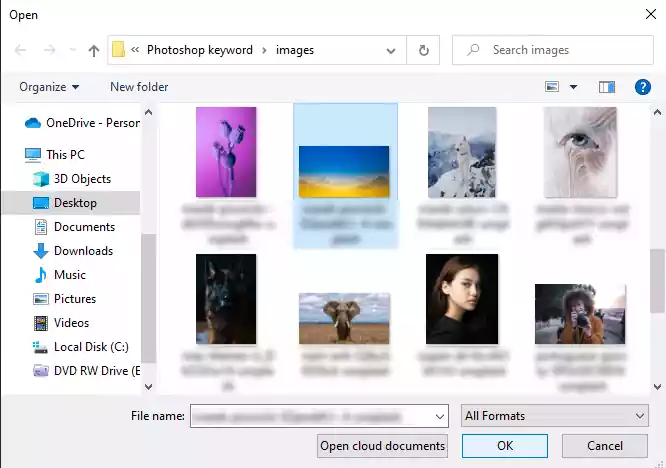
Each time you click OK, the name of the image file appears in the Load Layers dialog box. Continue until all selected images are added.
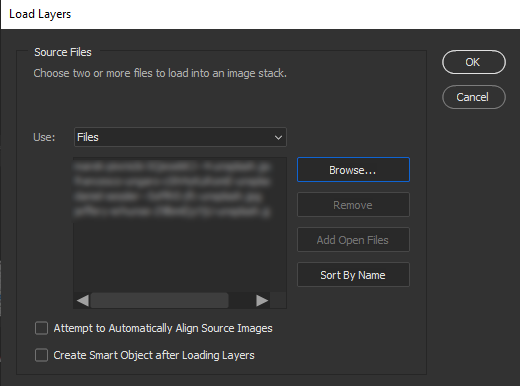
Now you have a file with multiple images in separate layers.
How to add another image in Photoshop from another document
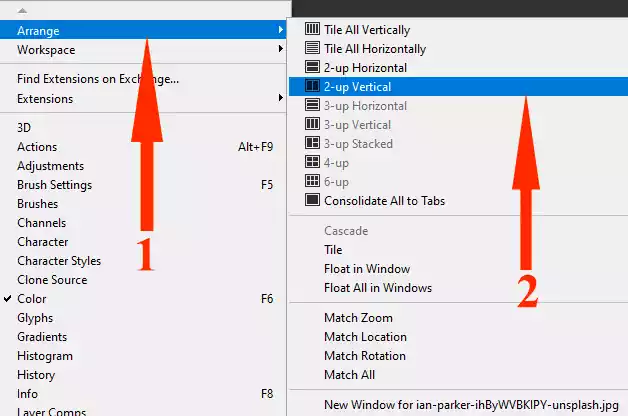
It is also possible to transfer an image from one document to another. To open two images in Photoshop from different documents, go to the Windows menu and select Arrange; click on one of the 2-up Horizontal or 2-up Vertical options.
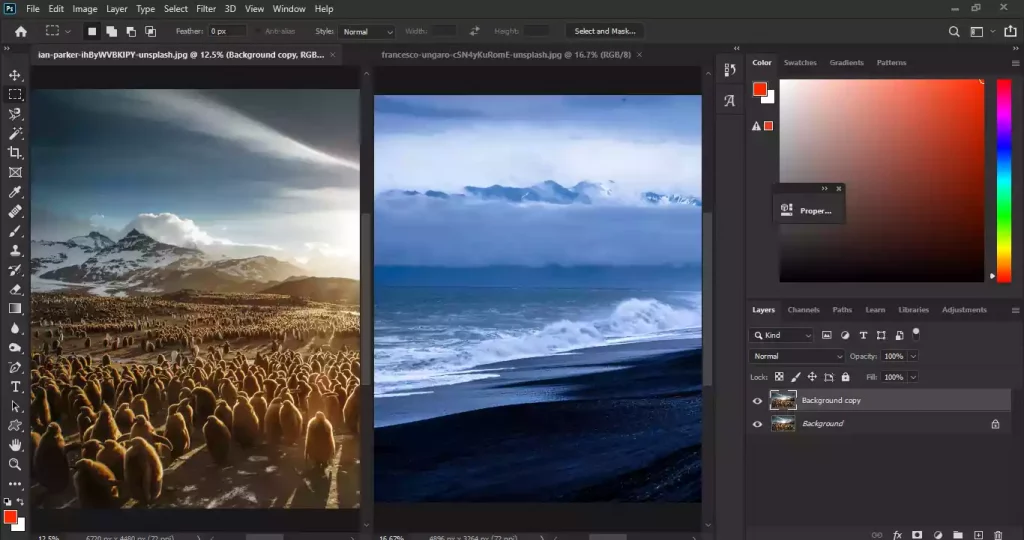
Select and drag the image layer you want to move using the Move tool. Click anywhere on another document where you want the image to be placed. The image will be added as a new layer to the target document.

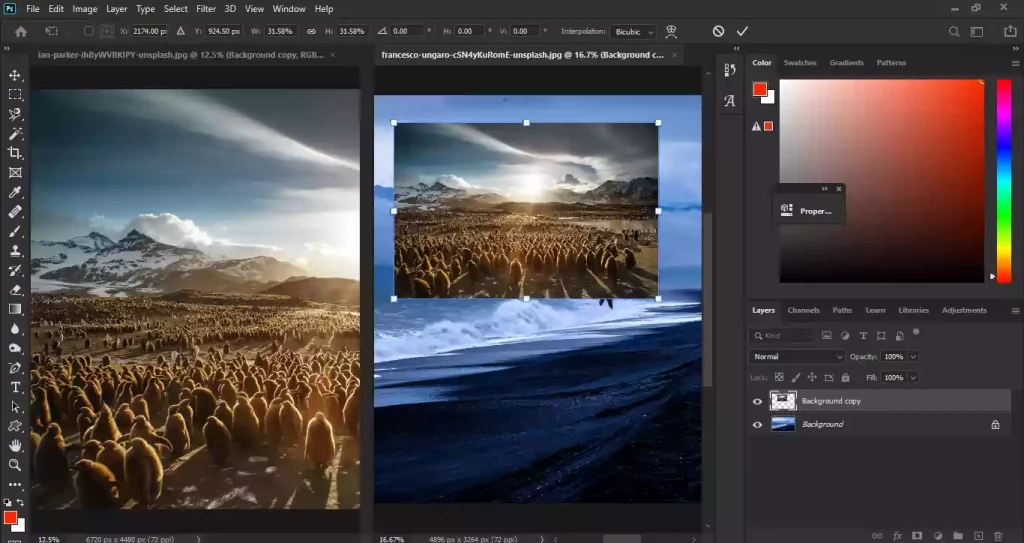
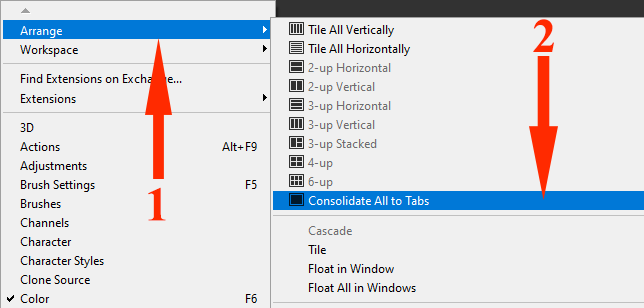
Finally, go to the Windows menu and after selecting Arrange, click on Consolidate All to Tabs. As a result, the document you are working on will fill the entire screen.
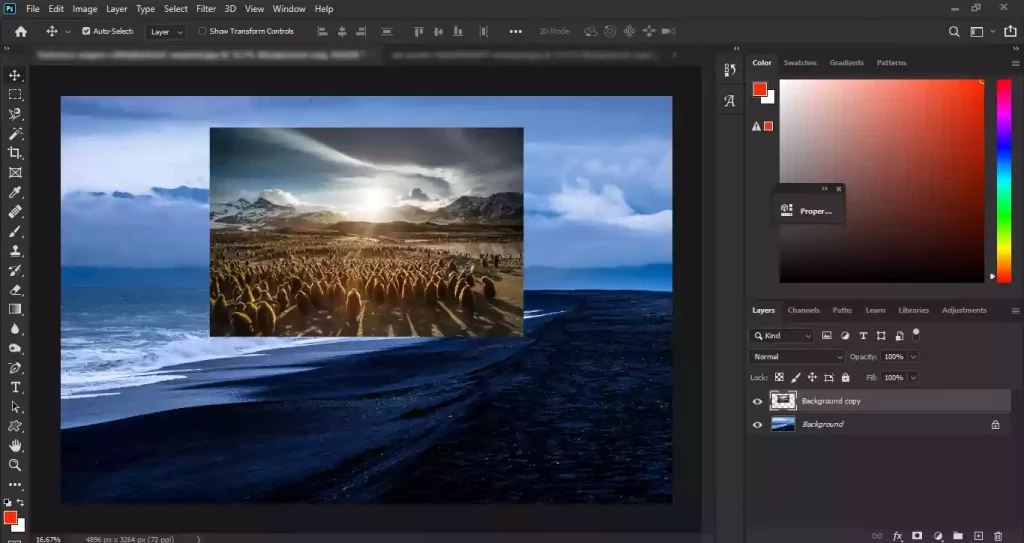
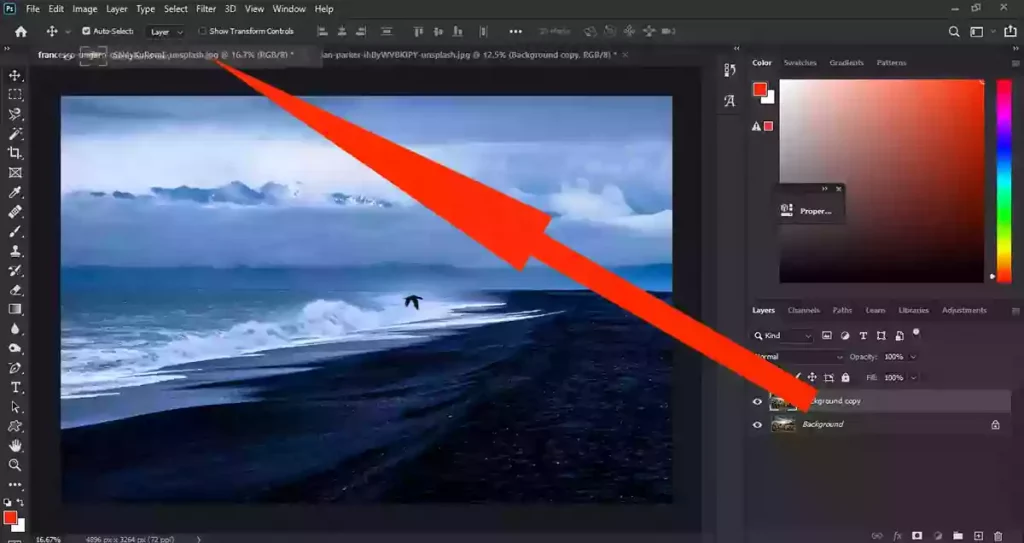
If you do not want two documents to be seen vertically or horizontally and only one to fill the screen, there is an easier way to open two images in Photoshop from different documents. Just drag the image layer to the tab of another document. Then, the second document will be opened completely. The new image can be placed by clicking anywhere on the target document.
Sources
https://www.photoshopessentials.com