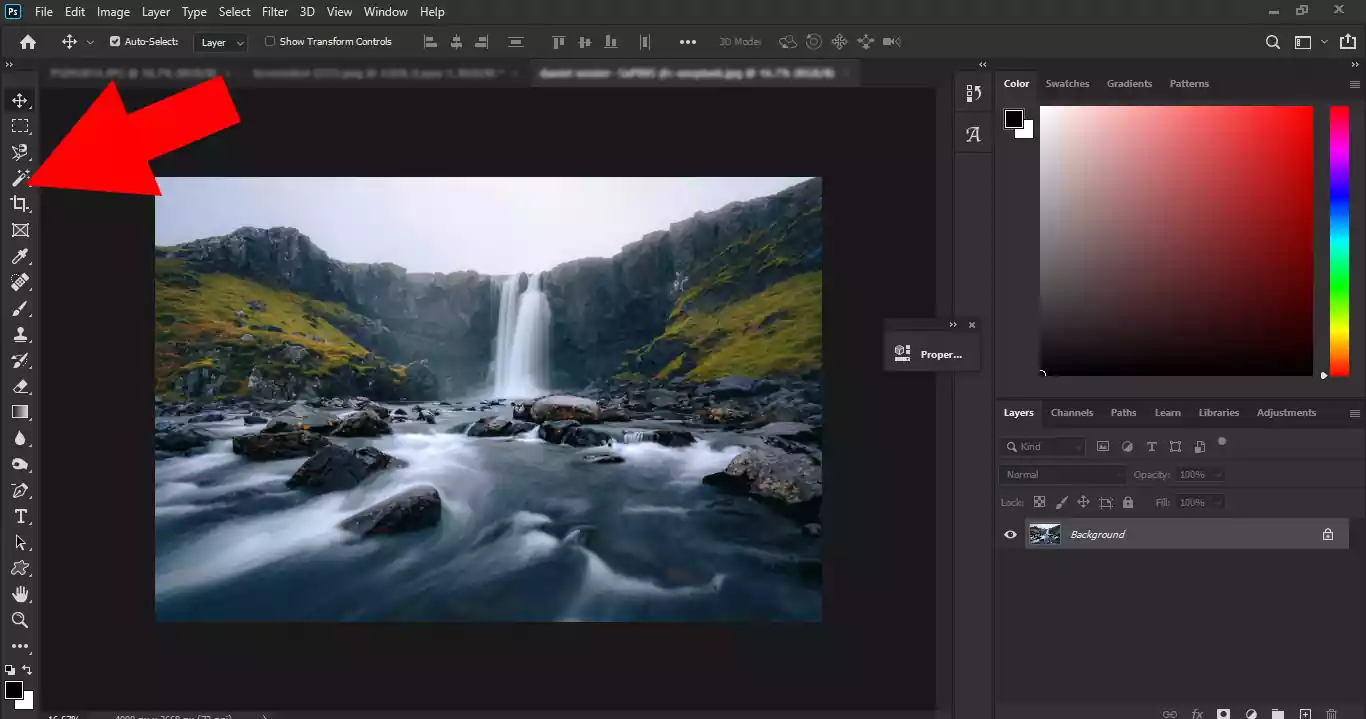
The Photoshop Toolbar contains many of the tools used for selections, retouching, painting, and editing. If the Toolbar suddenly disappears, it can interrupt your workflow and make Photoshop difficult to use. Fortunately, knowing how to get the Photoshop Toolbar back is easier than many beginners expect, since the problem is usually caused by a hidden panel, an accidental keyboard shortcut, or a workspace setting.
Why Does the Photoshop Toolbar Disappear?
In most cases, the Toolbar does not disappear because of a software problem. It is often caused by accidentally pressing the Tab key, hiding the Tools panel from the Window menu, or switching to a different workspace. Photoshop also allows users to customize the Toolbar, which may hide some tools without removing the panel itself. Understanding the cause makes it much easier to restore the missing tools and continue working normally.
How to Get the Photoshop Toolbar Back from the Window Menu
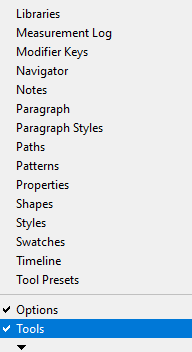
One of the easiest ways to restore the Toolbar is through the Window menu. Open the Window menu from the menu bar and scroll down until you find Tools. If the option is unchecked, click it once to make the Toolbar visible again. After enabling it, a checkmark should appear next to Tools, confirming that the panel is active.
New to Photoshop? Explore our Basic Photoshop Tutorials category for beginner-friendly guides covering tools, settings, and common editing workflows.
Want to understand what each tool does? See our complete Photoshop Toolbar guide and learn how the tools are organized inside Photoshop.

Pressing the Tab Key Hides All Panels
Another common reason for a missing Toolbar is pressing the Tab key by mistake. In Photoshop, the Tab key hides all panels, including the Toolbar, Layers panel, and Properties panel, giving you a distraction-free workspace. Press the Tab key again to restore all hidden panels and return to the normal interface.
What If Only Some Tools Are Missing?
Sometimes the Toolbar itself is visible, but certain tools appear to be missing. This usually happens when the Toolbar has been customized. To restore the default arrangement, go to Edit > Toolbar and click Restore Defaults. Photoshop will bring back all hidden tools and place them in their original groups.
How to Get the Photoshop Toolbar Back by Resetting the Essentials Workspace
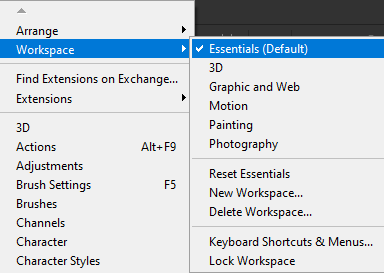
Photoshop workspaces control the arrangement of panels and tools. The Essentials workspace is the default layout and works well for most users. If the Toolbar disappears after switching workspaces, resetting Essentials often restores the normal interface.
Many Photoshop tools are grouped together inside the Toolbar. Explore our Photoshop Selection Tools guide to learn how selection tools are organized and used.
Go to Window > Workspace and choose Essentials. If Essentials is already selected, choose Reset Essentials to restore the default arrangement of panels and tools. This usually fixes interface problems caused by accidental workspace changes.indows menu, hold the mouse over the workspace, and select Essentials.
Reset Photoshop Preferences as a Last Resort
If none of the previous solutions work, resetting Photoshop preferences may solve the problem. Go to Edit > Preferences > General and choose Reset Preferences on Quit. Restart Photoshop afterward. Since this option restores Photoshop to its default settings, it should only be used when other solutions fail.
Common Reasons Why the Toolbar Keeps Disappearing
Repeated Toolbar problems are often caused by accidental keyboard shortcuts, customized workspaces, hidden tools, or corrupted preferences. Fortunately, most of these issues can be fixed without reinstalling Photoshop. Understanding the source of the problem helps you restore the interface quickly and avoid interruptions in your editing workflow.
Sources